

SIBS Backoffice offers several User levels. Depending on the profile associated to the User Account, the User has access to different features of the Portal.
The Merchant profiles that can be assigned to Users are as follows:
- Owner
- Administrator
- Manager
- Supervisor
- Operator
- Analytics
- QR Code Manager
On the table provided below, you can see the features available for each SIBS Backoffice profiles.
- View
- Change
Owner |
Administrator |
Manager |
Supervisor |
Operator |
Analytics |
QR Code Manager |
|
Menu/Submenu |
|||||||
Cockpit |
 |
|
|
|
 |
|
|
24 hours |
|
|
|
|
|
|
|
History analysis |
|
|
|
|
|
|
|
Menu/Submenu |
|||||||
Payments |
|
|
|
|
|
|
|
Payment operations* |
|
|
|
|
|
|
|
Reconciliation operations |
|
|
|
|
|
|
|
Menu/Submenu |
|||||||
SIBS Payment Gateway 2.0 |
|
|
|
|
|
|
|
MIT |
|
|
|
|
|
|
|
QR Code Express |
|
|
|
|
|
|
|
vTerminal |
|
|
|
|
|
|
|
Credentials |
|
|
|
|
|
|
|
Webhooks |
|
|
|
|
|
|
|
Tokens management |
|
|
|
|
|
|
|
App SPG 2.0 |
|
|
|
|
|
|
|
Payment entities |
|
|
|
|
|
|
|
Authorized payments |
|
|
|
|
|
|
|
Menu/Submenu |
|||||||
SIBS Payment Gateway 1.0 |
|
|
|
|
|
|
|
Operational data |
|
|
|
|
|
|
|
Stores |
|
|
|
|
|
|
|
Terminals |
|
|
|
|
|
|
|
Other reports |
|
|
|
|
|
|
|
Menu/Submenu |
|||||||
Marketplace |
|
|
|
|
|
|
|
Parameterization |
|
|
|
|
|
|
|
Submerchant |
|
|
|
|
|
|
|
Marketplace credentials |
|
|
|
|
|
|
|
Balance escrow account |
|
|
|
|
|
|
|
Menu/Submenu |
|||||||
Configuration |
|
|
|
|
|
|
|
MIT |
|
|
|
|
|
|
|
Users |
|
|
|
|
|
|
|
Transaction list |
|
|
|
|
|
|
|
Authorized payments |
|
|
|
|
|
|
|
Menu |
|||||||
Events and audits |
|
|
|
|
|
|
|
Omni-channel extract |
|
|
|
|
|
|
|
Owner |
Administrator |
Manager |
Supervisor |
Operator |
Analytics |
QR Code Manager |
|
Menu/Submenu |
|||||||
Cockpit |
n.a. |
n.a. |
n.a. |
n.a. |
n.a. |
n.a. |
n.a. |
24 hours |
n.a. |
n.a. |
n.a. |
n.a. |
n.a. |
n.a. |
n.a. |
History analysis |
|
|
|
|
|
|
|
Menu/Submenu |
|||||||
Payments |
|
|
|
* |
|
|
|
Payment operations* |
|
|
|
|
|
|
|
Reconciliation operations |
|
|
|
|
|
|
|
Menu/Submenu |
|||||||
SIBS Payment Gateway 2.0 |
|
|
|
|
|
|
|
MIT |
|
|
|
|
|
|
|
QR Code Express |
|
|
|
|
|
|
|
vTerminal |
|
|
|
|
|
|
|
Credentials |
|
|
|
|
|
|
|
Webhooks |
|
|
|
|
|
|
|
Tokens management |
|
|
|
|
|
|
|
App SPG 2.0 |
|
|
|
|
|
|
|
Payment entities |
|
|
|
|
|
|
|
Authorized payments |
|
|
|
|
|
|
|
Menu/Submenu |
|||||||
SIBS Payment Gateway 1.0 |
|
|
|
|
|
|
|
Operational data |
|
|
|
|
|
|
|
Stores |
|
|
|
|
|
|
|
Terminals |
|
|
|
|
|
|
|
Other reports |
|
|
|
|
|
|
|
Menu/Submenu |
|||||||
Marketplace |
|
|
|
|
|
|
|
Parameterization |
|
|
|
|
|
|
|
Submerchant |
|
|
|
|
|
|
|
Marketplace credentials |
|
|
|
|
|
|
|
Balance escrow account |
|
|
|
|
|
|
|
Menu/Submenu |
|||||||
Configuration |
|
|
|
|
|
|
|
MIT |
|
|
|
|
|
|
|
Users |
|
|
|
|
|
|
|
Transaction list |
|
|
|
|
|
|
|
Authorized payments |
|
|
|
|
|
|
|
Menu |
|||||||
Events and audits |
|
|
|
|
|
|
|
Check user status
In order to check the status of a user account, the information of the “Status” will have the following colors:


Add new user
SIBS Backoffice grants unlimited number of accounts per merchant.
To register a new user into SIBS Backoffice go to “Configuration” > “Users”. In that page click on the “Add user” button.
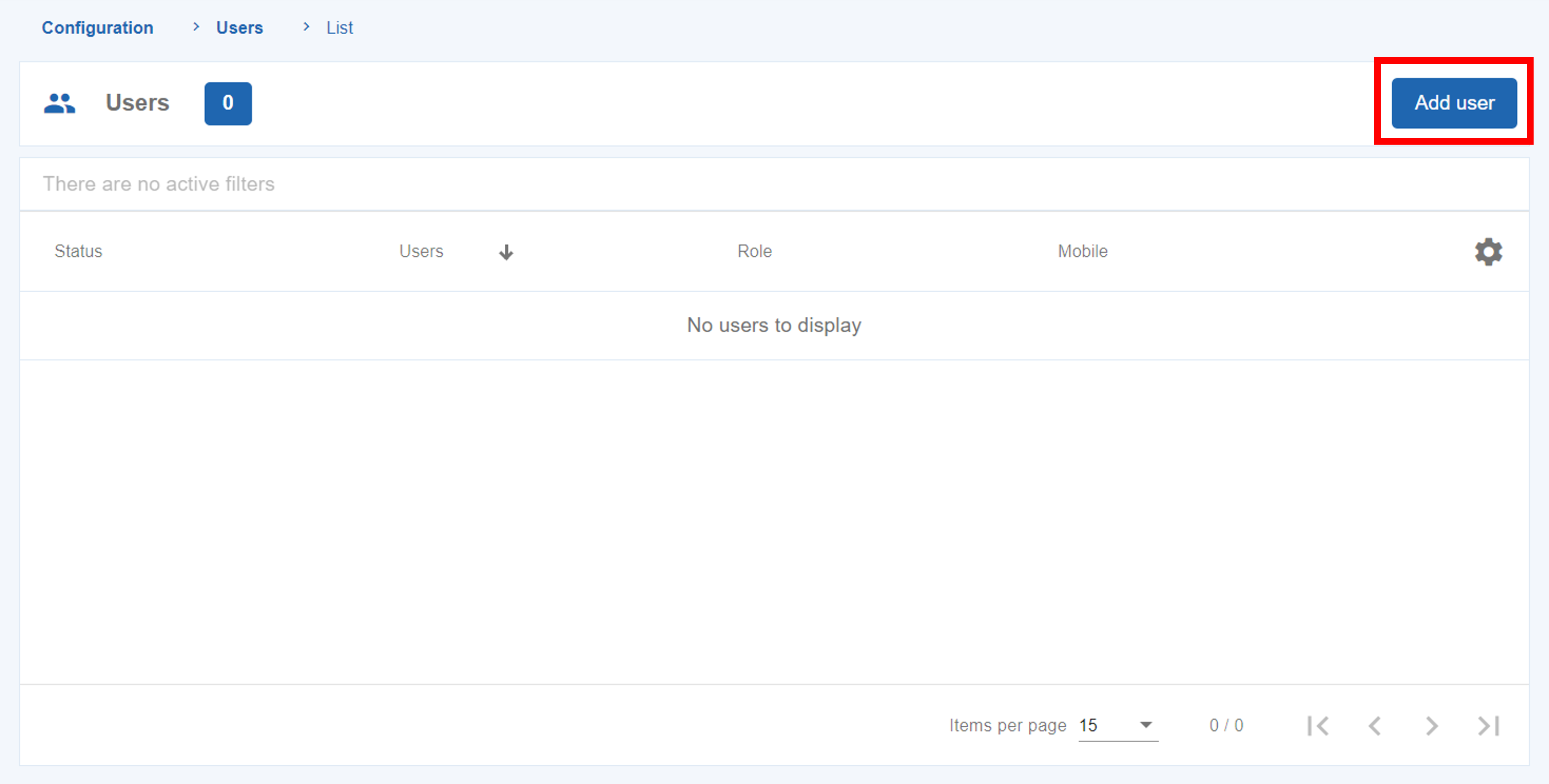

Once all required information is filled in, click on the “Add user” button.
The new user must then follow the account activation steps in order to register his account.
Edit user
In the “Configurations” > “Users” a user can view a list of accounts registered.
By clicking on “Actions” > “Edit” on a specific user available on the list, you will be able to edit the configurations of that specific user.
After all the changes are made, click on the “Edit” button to save.