



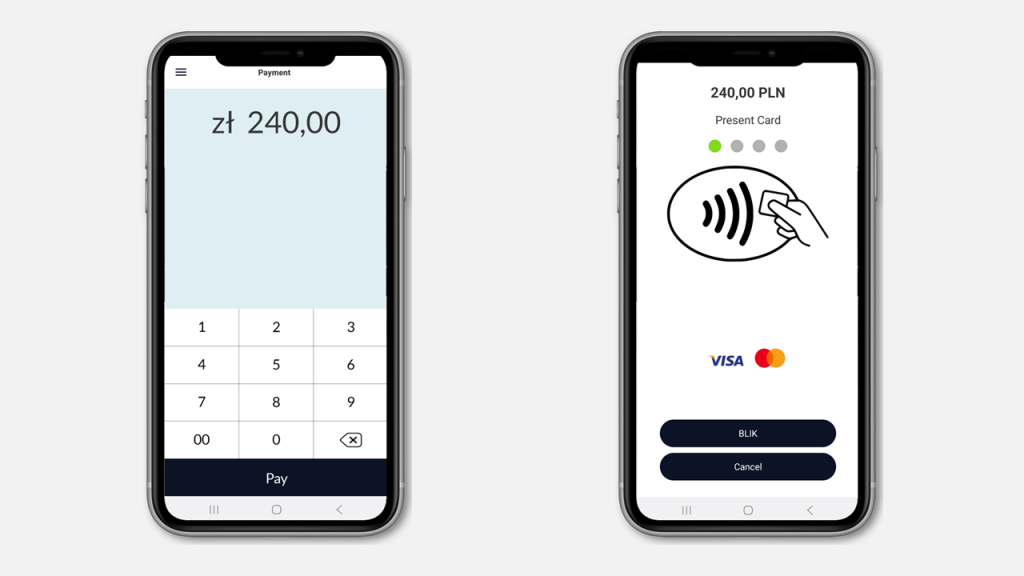
Welcome to SIBS Pay, SIBS’ latest SoftPOS solution. This guide will help you activate and set up your device, so you can start accepting payments quickly.
Device requirements
Before you start, make sure your device meets the minimum requirements:
- Android 9.0 or higher
- NFC (Near Field Communication) antenna
- hardware-backed keystore for enhanced security
- access to the Google Play Store
- original factory operating system (no rooted or modified devices).
Set up the softPOS app
Step 1: Install the app
1. Open the Google Play Store on your Android smartphone or tablet.
2. Search for SIBS Pay.
3. Download and install the app.
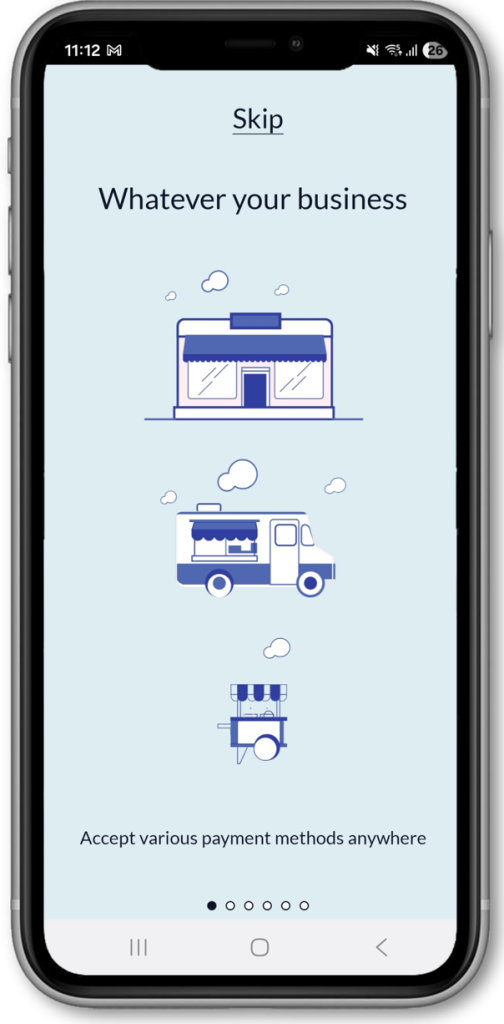
4. Open the app and review the introduction screens.
Step 2: Activate your account
If you have already activated your SIBS Backoffice account using the activation email you received, skip to Log in to the app.
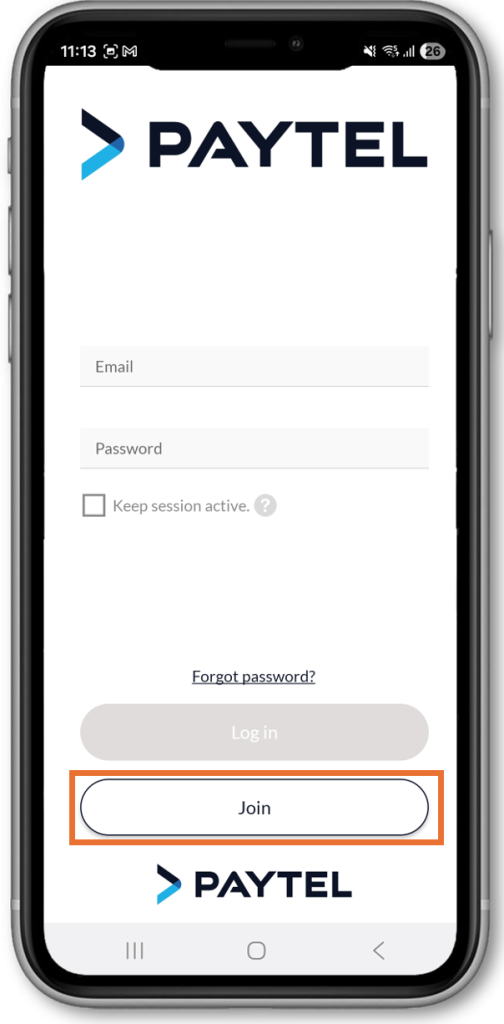
1. On the welcome screen, tap Join.
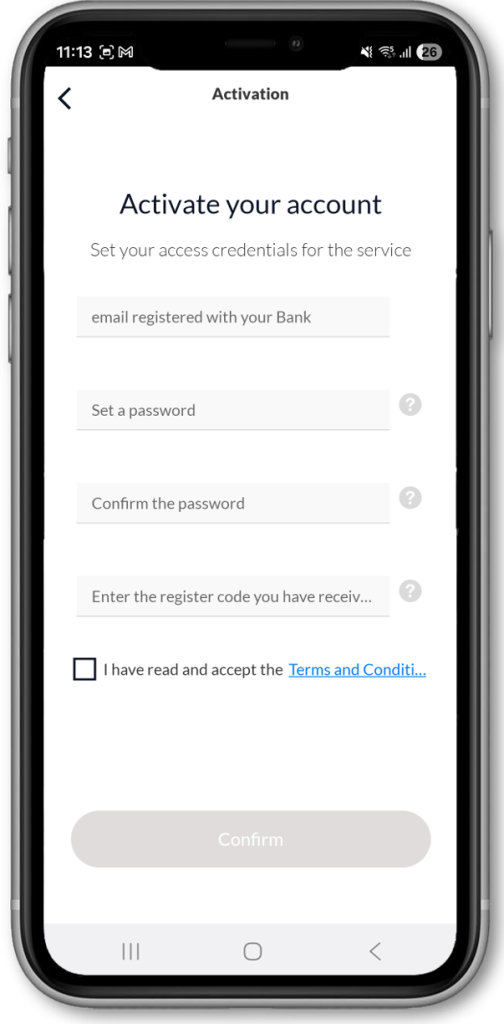
2. Enter the email address used during registration.
3. Create a password. Your password must:
- Be between 17 and 32 characters long
- Include at least one uppercase letter (A–Z)
- Include at least one lowercase letter (a–z)
- Include at least one number (0–9)
- Include at least one special character (for example: !, @, #, $)
4. Enter the activation code provided in the SIBS Backoffice – Registration email.
5. Read and accept the Terms and Conditions.
6. Tap Continue.

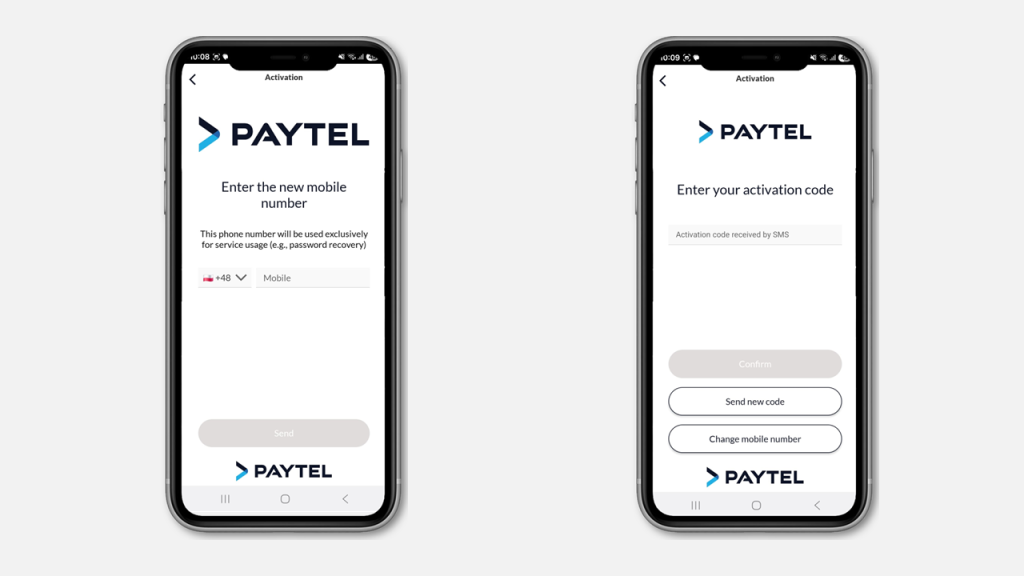
7. Enter the mobile phone number you want to associate with your account.
8. Enter the verification code sent to you by SMS.
Log into the app
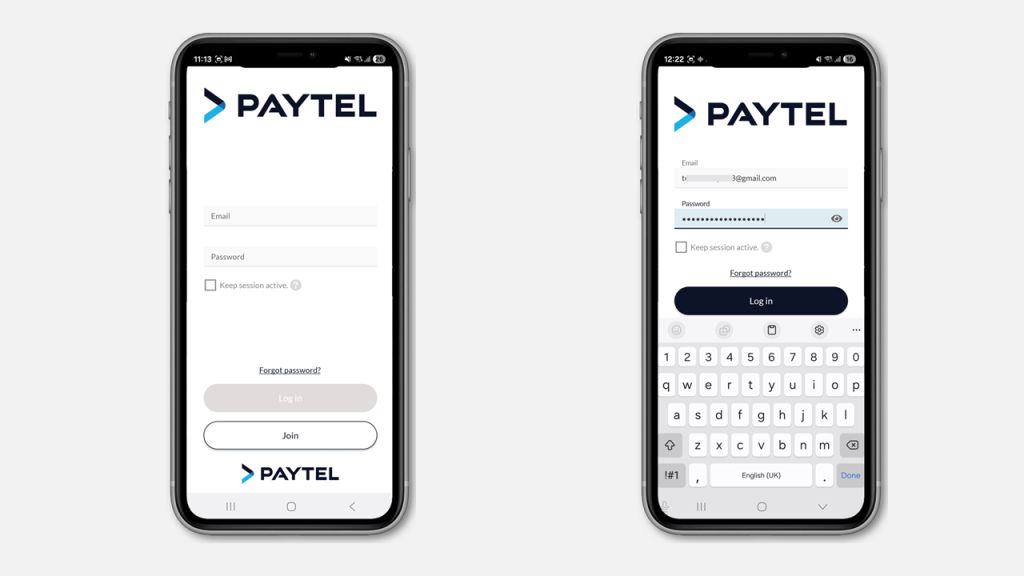
1. Enter the email address and password you created during account activation.
2. Tap Log in.
You can use the same credentials for both SIBS Backoffice and the LightPOS 2.0 app.
Explore LightPOS 2.0 in greater detail on the following pages:
For merchants interested in our app-to-app integration, please see the page below: