



Integrate the Payment Form quickly and start accepting payments safely while keeping sensitive data off your systems.
This guide walks you through every step of the integration, from creating an order to generating the Payment Form and checking the transaction status.
Step 1: Create an Order
When your shopper is ready to pay, start by creating an order.
This initializes a transaction and defines the merchant, shopper, and transaction details required for payment processing.
The Available Endpoint destination URL:
| Environment | URL | Operation method & Endpoint | Operation description |
|---|---|---|---|
| PROD | api.sibsgateway.com | api/version-id/payments | Performs a request to prepare the checkout required data an returns with the Payment Form. |
| TEST | stargate.qly.site[1|2].sibs.pt | api/version-id/payments | Creates a transaction in test environment. |

The order creation process requires three main actions:
- Action 1: Define the header and add merchant and customer information.
- Action 2: Add transaction information to your order.
- Action 3: Configure webhooks for transaction updates.
Action 1: Define the Header and Add Merchant & Customer Information
Define the headers required for authentication and provide the merchant and shopper information needed to initiate the transaction.
Check below the full description of the required data to start creating your order.
Header Parameters
| Field | Type | Required | Description | Example |
|---|---|---|---|---|
| Content-Type | string | Mandatory | Defines the content type of the request. | application/json |
| Authorization | string | Mandatory | Bearer token for authentication. | Bearer xxxxxxxx |
| x-ibm-client-id | string | Mandatory | Token identifying the client organization, provided during onboarding. | 123456789 |
Request Parameters
The following objects define the data required to create an order and initialize the Payment Form.
| Field | Type | Condition | Description | Example |
|---|---|---|---|---|
| merchant.terminalId | numeric (≤10) | Mandatory | Merchant terminal identifier | 47215 |
| merchant.channel | string | Mandatory | Channel used for the transaction | Web |
| merchant.merchantTransactionId | string (≤1000) | Mandatory | Unique transaction identifier | ORDER_123 |
| merchant.transactionDescription | string (≤4000) | Optional | Description of transaction | Payment for order #001 |
| customer.customerInfo.customerName | string | Mandatory | Shopper full name | John Doe |
| customer.customerInfo.customerEmail | string | Mandatory | Shopper email | john@email.com |
| transaction.amount.value | number (double) | Mandatory | Transaction amount | 50.00 |
| transaction.amount.currency | string | Mandatory | Currency (ISO 4217) | EUR |
| transaction.paymentMethod | array | Mandatory | Payment methods to display | [“CARD”] |

Full Request Structure (Optional Advanced Configuration)
The API supports a complete set of fields that allow advanced configurations such as detailed customer data, device information, shipping and billing addresses, and custom metadata.
For most Payment Form integrations, these additional fields are optional and should only be used when required by your business or regulatory needs.
For a complete list of supported fields and detailed specifications, please refer to the Server-to-Server API documentation.
Action 2: Add Transaction Information
This action defines the transaction itself, including the amount, payment method, timestamp, and other attributes required to process the payment correctly.
At this stage, you should include the transaction information based on the payment methods you want to render in your Payment Form.
1.1. transaction (object) – Mandatory
| Field | Type | Condition | Description | Example |
|---|---|---|---|---|
| Transaction | object | Mandatory | Transaction details (amount, method, timestamp). | – |
| transaction.transactionTimeStamp | ISODateTime | Mandatory | Transaction creation timestamp | 2026-02-19T15:00:00.000Z |
| transaction.description | string (<=100) | Mandatory | Transaction short description | Payment for Order #20260220 |
| transaction.moto | boolean | Mandatory | Indicates whether the transaction is a Mail Order / Telephone Order (MOTO) transaction. | False |
| transaction.paymentType | string | Mandatory | Type of payment. allowed values: “PURS”– Purchase “AUTH”– Authorization | PURS (Purchase) |
| transaction.paymentMethod | array | Mandatory | Possible values are: “CARD” – Card “TOKEN” – Token “PAY_BY_LINK”- Pay by Link “BLIK” – BLIK “XPAY” – xPay “IDEL” – Ideal “BNCT” – Bancontact “SPDD” – SEPA Direct Debit “CRTB” – Cartes Bancaires “MBWY” – “MB WAY” “BIZM” – “Bizum” | [“CARD”,”BLIK”,”TOKEN”] |
| transaction.amount | object | Mandatory | Amount object containing transaction value and currency | – |
1.2. Amount (object) – Mandatory
| Field | Type | Condition | Description | Example |
|---|---|---|---|---|
| transaction.amount | object | Mandatory | Transaction amount and currency | – |
| transaction.amount.value | double | Mandatory | Amount of transaction | 50.5 |
| transaction.amount.currency | string | Mandatory | Currency ISO 4217 | PLN |

Action 3: Configure Webhooks for Transaction Updates
In this step, you will set up webhooks to automatically receive real-time transaction updates, ensuring your system is always up to date with the latest payment status.
By configuring webhooks, you can be notified of key events such as successful payments, failures, or other transaction changes, without the need to constantly poll the API.
Webhooks are the recommended approach for production integrations, as they provide real-time updates without requiring additional API calls.
To learn more about our webhook solution, click here.
Here is an example of how to create an order:
Full Request Example (Advanced Configuration)
The following example illustrates a complete request with optional and advanced fields. For a basic Payment Form integration, only a subset of these fields is required.
Additional fields such as device information or extended data should be included only when necessary, depending on your business or regulatory requirements
</> JSON
{
  "merchant": {
    "terminalId": 47215,
    "channel": "Web",
    "merchantTransactionId": "ORDER_20260309_001",
    "transactionDescription": "Payment for order #1001",
    "shopURL": "https://myshop.com"
  },
  "customer": {
    "customerInfo": {
      "customerName": "Jan Kowalski",
      "customerEmail": "jan.kowalski@example.com",
      "customerPhone": "+48500123456",
      "customerLanguage": "pl"
    },
    "shippingAddress": {
      "street1": "Marszalkowska 10",
      "street2": "Apartment 5",
      "city": "Warsaw",
      "postcode": "00-001",
      "countrySubDivision": "PL",
      "country": "PL"
    },
    "billingAddressSameAsShippingAddress": true
  },
  "transaction": {
    "transactionTimestamp": "2026-03-09T14:30:00.000Z",
    "description": "Order payment",
    "moto": false,
    "paymentType": "PURS",
    "paymentMethod": [
      "CARD",
      "BLIK"
    ],
    "amount": {
      "value": 50.50,
      "currency": "EUR"
    }
  },
  "info": {
    "deviceInfo": {
      "browserAcceptHeader": "text/html",
      "browserJavaEnabled": "true",
      "browserJavascriptEnabled": "true",
      "browserLanguage": "en-US",
      "browserColorDepth": "24",
      "browserScreenHeight": "1080",
      "browserScreenWidth": "1920",
      "browserTZ": "GMT+1",
      "browserUserAgent": "Mozilla/5.0 (Windows NT 10.0; Win64; x64)",
      "systemFamily": "Windows",
      "systemVersion": "10",
      "systemArchitecture": "x64",
      "deviceManufacturer": "Dell",
      "deviceModel": "XPS 15",
      "deviceID": "12345-67890",
      "applicationName": "Form:MyShopCheckout",
      "applicationVersion": "1.0",
      "geoLocalization": "52.2297,21.0122",
      "ipAddress": "192.168.1.10"
    }
  },
  "extendedInfo": [
    {
      "key": "loyaltyId",
      "value": "LTY-998877"
    }
  ]
}
Step 2: Create the Payment Form
Once the order is created, you can render the Payment Form on your checkout page.
At a high level, the integration works as follows:
- Your backend creates the order
- Your frontend renders the Payment Form using the response data
- The shopper enters the payment details securely
- SIBS Gateway processes the payment
- Your backend retrieves the final transaction status.
To do this, you will use the values returned in the response from Step 1, specifically the transactionID and the formContext.
At this stage, your frontend is responsible for rendering the Payment Form, while SIBS Gateway securely handles all payment data collection and processing.
No sensitive payment data is handled or stored on your systems, as all data collection and processing is securely managed by SIBS Gateway, helping you reduce PCI scope and compliance effort.
How the Payment Form is rendered
To display the Payment Form, you need to add the following HTML and JavaScript to your checkout page and populate the required variables.
1. Include the Payment Form script using the transactionID returned in Step 1:
</> HTML
<script src="https://stargate.qly.site1.sibs.pt/assets/js/widget.js?id={transactionID}"></script>
This script loads the Payment Form and links it to the transaction previously created.
2. Add the Payment Form container using the formContext and formConfig:
</> HTML
<form class="paymentSPG" spg-context="{formContext}" spg-config="{formConfig}"></form>
formContext is returned in the response from Step 1 and contains the secure session data required to initialise the form.
formConfig is defined by you and controls how the Payment Form is displayed and behaves.
It allows you to control how the Payment Form is displayed, including:
- Which payment methods are shown
- The transaction amount and currency
- The form language
- The redirection behavior after payment
</> JavaScript

const CHECKOUT_REQUEST_EXAMPLE = {
  "merchant": {
    "terminalId": 47215,
    "channel": "web",
    "merchantTransactionId": "5351136"
  },
  "transaction": {
    "transactionTimestamp": "2020-05-20T15:41:56.971Z",
    "description": "Transaction short description",
    "moto": false,
    "paymentType": "AUTH",
    "amount": {
      "value": 5,
      "currency": "EUR"
    },
    "paymentMethod": [
      "REFERENCE",
      "CARD",
      "MBWAY"
    ],
    "paymentReference": {
      "initialDatetime": "2020-05-20T15:41:56.971Z",
      "finalDatetime": "2020-12-31T15:41:56.971Z",
      "maxAmount": { "value": 5, "currency": "EUR" },
      "minAmount": { "value": 5, "currency": "EUR" },
      "entity": "25100"
    }
  }
};

const FORM_CONFIG_EXAMPLE = {
  "paymentMethodList": [""],
  "amount": { "value": 2, "currency": "EUR" },
  "language": "en",
  "redirectUrl": "https://www.google.com/"
};
formConfig parameters
| Parameter | Type | Available values | Description |
|---|---|---|---|
| paymentMethodList | string | Multiple | Defines which payment methods are displayed in the Payment Form. This should align with the paymentMethodList returned in the response from Step 1, ensuring that only available methods are presented to the shopper. |
| amount | – | Transaction amount and currency | |
| language | string | en, pl, nl, fr, de, cs, pt, ro, es, bg, lt | Language of the Payment Form (ISO 639-1 format) |
| redirectUrl | string | – | URL where the shopper is redirected after completing the payment |
Optional customization
You can further customise the Payment Form appearance using formStyle.
For more details, refer to the Customized Form section.
What happens after payment
After the payment is processed:
- A transaction status page is displayed to the shopper;
- The shopper is automatically redirected to the redirectUrl defined in your configuration.
This ensures a seamless checkout experience while keeping all sensitive payment data handled by SIBS.
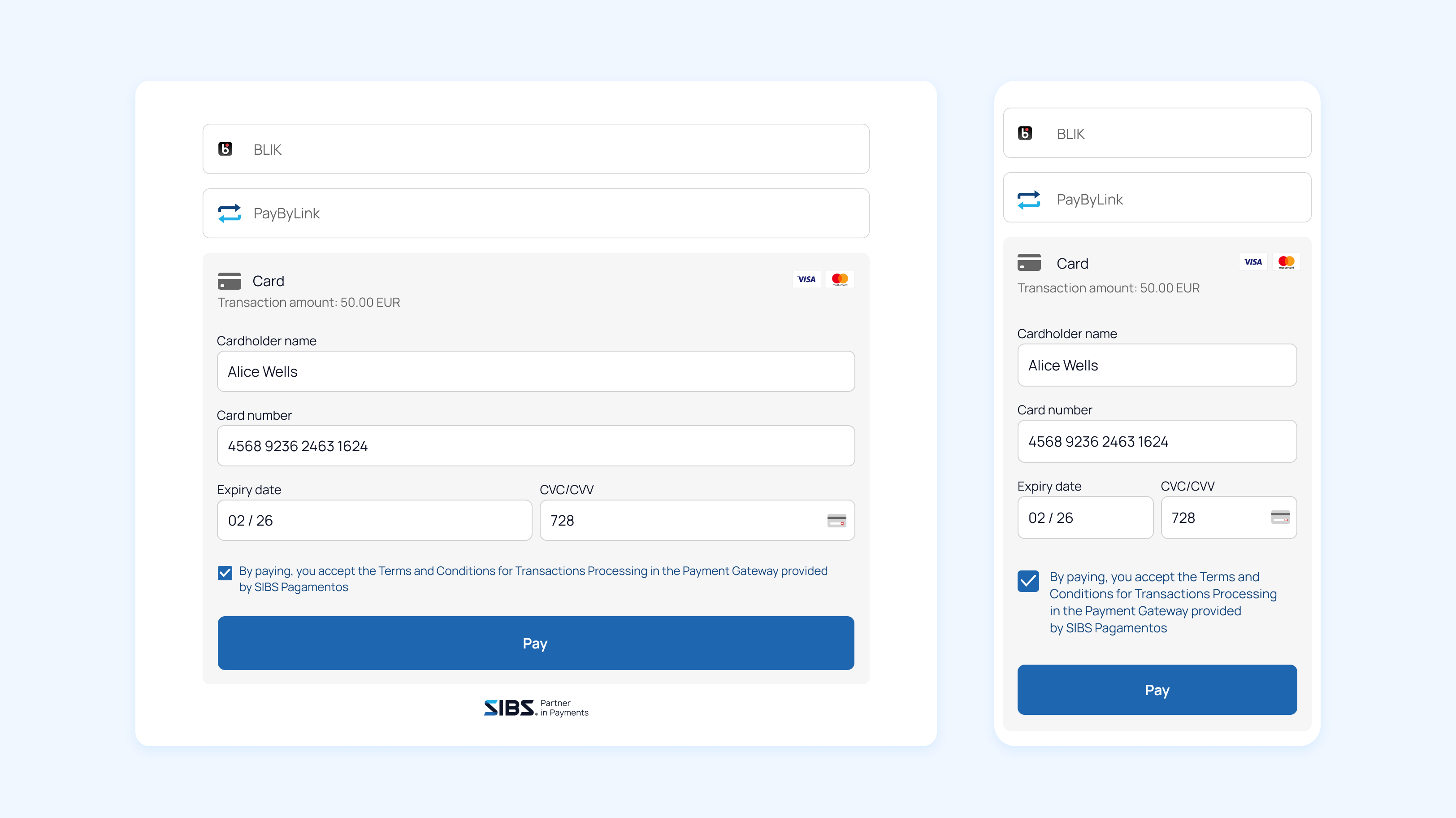
Payment Form preview
Below, you can see the Payment Form in its default layout, available on both web and mobile:
Step 3: Get the Payment Status
Once the Payment Form flow is completed, you can retrieve the final status of the transaction by making a GET request.
This allows you to validate the outcome of the payment, update your order status, and trigger any post-payment business logic such as order fulfillment or notifications.
Request details
</> HTTP

GET https://stargate.qly.site1.sibs.pt/api/v1/payments/{transactionID}/status
Request headers
Authorization: Bearer <AuthToken>
X-IBM-Client-Id: <ClientId>
Content-Type: application/json