

Overview
The SIBS WooCommerce plugin enables secure payment acceptance directly within the WooCommerce checkout experience.
It integrates seamlessly with the WooCommerce order lifecycle and provides built-in support for SIBS SPG payment methods and notifications.
The plugin abstracts direct interaction with SPG APIs, including payment execution, notifications, and status handling. Merchants are not required to implement SPG API calls directly, but must ensure that order states within WooCommerce correctly reflect the actual payment outcome, including for payment methods whose final outcome is not immediately available.
Refer to B.3.1 – Common Configuration for the general plugin execution flow, notification handling, and transaction-status mechanisms.
Benefits
- Native WooCommerce checkout experience
- Automatic order status synchronisation
- Support for payment methods with immediate or delayed final outcomes
- No direct API integration required
Before You Start
Ensure you have the following credentials from SIBS Onboarding team:
- Terminal ID : the terminal ID assigned to the merchant, by the SIBS Onboarding team
- Client ID : merchant application identifier assigned by the SIBS Onboarding team
- Authentication token : Authentication Token obtained from SIBS Backoffice
- Environment (Sandbox or Production)
These credentials are provided during SIBS onboarding and are required for plugin configuration and authentication with SPG services.
Installation
Step 1 – Install the plugin
Download the SIBS WooCommerce plugin package provided during onboarding.
In WordPress:
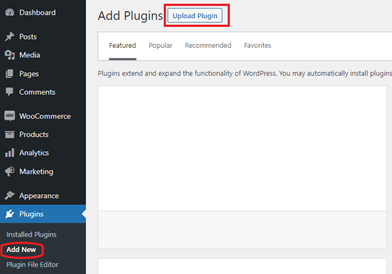
Upload the plugin ZIP and activate it.
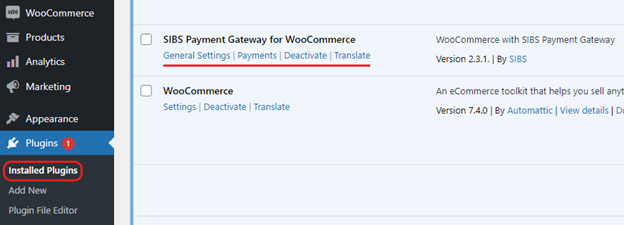
Step 2 – Access plugin settings
Navigate to:
Step 3 – Enter General Settings tab
Navigate to:
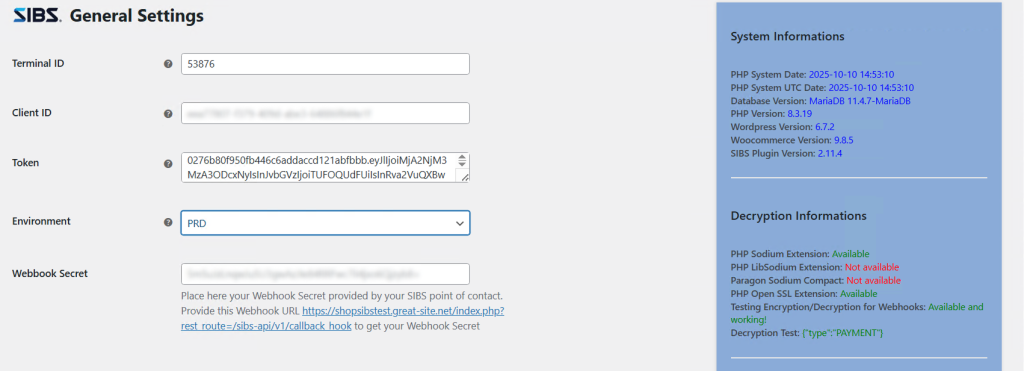
Step 4 – Enter SPG Credentials
All plugins require authentication parameters provided during onboarding.
Required fields:
- Terminal ID: Identifies the merchant terminal within SPG.
- Client ID: Used for API authentication and request validation.
- Authentication Token: Bearer token used for secure communication with SIBS Payment Gateway APIs
Step 5 – Select Environment
Plugins support two environments:
Sandbox
- Used for development and testing
- No real transactions
Production
- Used for live payments
- Requires full onboarding approval
Always validate the integration in Sandbox before switching to Production.
Step 6 – Save Changes
Apply configuration changes before enabling payment methods.
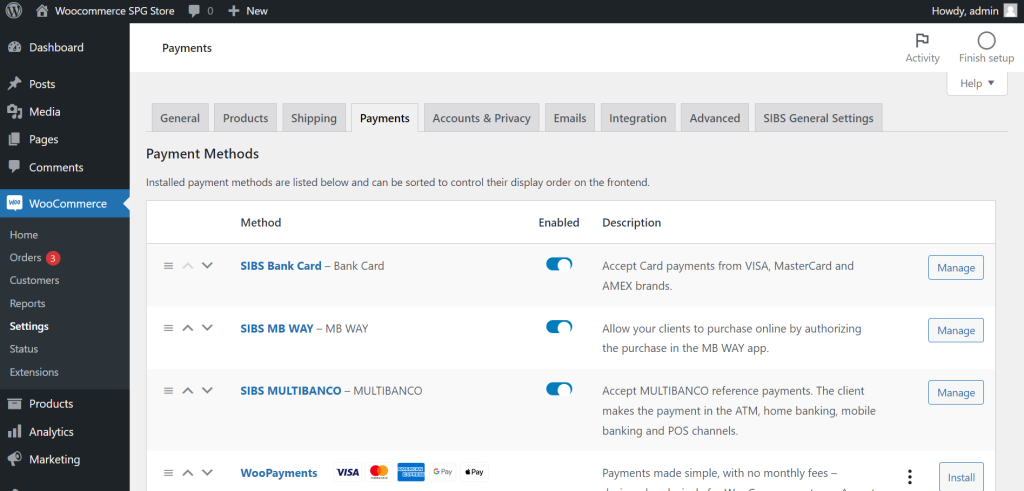
Step 7 – Customize your payment options
SIBS plugin for WooCommerce supports a range of popular payment methods, including MB WAY, MULTIBANCO References and Cards (VISA, Mastercard, etc.).
- Enter Payments tab (see Step 2: Access plugin settings).
- Click Manage to access the main configurations for each payment method.
Notes:
- Payment method availability depends on your SPG contract and merchant setup
- Some screens and configuration labels may vary depending on WooCommerce version
- If you change credentials or environment, re-test a full payment flow before going live
Operational Behaviour
The following sections describe how the WooCommerce plugin behaves after configuration, including transaction-status notifications, order lifecycle management, and transaction visibility.
Notifications and Order Synchronization
The WooCommerce plugin relies on transaction-status notifications to update order states.
These notifications reflect payment events such as:
- MB WAY confirmations
- Multibanco settlement updates
- Fraud or cancellation signals
The plugin processes these notifications internally and automatically updates the order lifecycle in WooCommerce.
Merchants are not required to implement webhooks or call SPG APIs directly. However, they must ensure that order states in WooCommerce correctly reflect the actual payment outcome, including for payment methods whose final outcome is not immediately available.
Final transaction status must be reliably reflected through the platform and plugin mechanisms. Status retrieval or reconciliation should be performed when required by WooCommerce, plugin capabilities, or operational process.
Order Lifecycle Behaviour
Order lifecycle transitions depend on the payment method and its execution model.
Typical synchronous flow: Pending → Processing → Completed
Typical asynchronous flow (e.g., MB WAY, Multibanco Reference): Pending → Awaiting Payment → Paid / Expired
WooCommerce updates order states automatically through the plugin, but merchants must ensure consistency between order status and actual transaction outcome.
Logging and Troubleshooting
Troubleshooting depends on WooCommerce logging capabilities and plugin diagnostics.
If issues occur:
- Verify SPG credentials and environment configuration
- Confirm onboarding completion
- Check WooCommerce system logs and plugin logs
- Reproduce the issue in Sandbox
For effective troubleshooting, merchants should correlate WooCommerce order identifiers with SPG transaction identifiers to ensure traceability across systems.
Refer to F.5 Logging and Monitoring Best Practices for guidance on correlation and observability.
Transaction Visibility
Transactions processed via the WooCommerce plugin are handled through the SIBS Payment Gateway infrastructure.
Transaction lifecycle management (status tracking, reporting, reconciliation) is available through:
- SIBS Backoffice
- Notifications / callbacks
- WooCommerce order management interface
Merchants should rely on SIBS Backoffice and WooCommerce reporting tools to ensure proper reconciliation and verification of transaction outcomes.
Related Topics
- B.3 – Plugin Integration for integration model overview and responsibilities
- B.3.1 – Common Configuration for shared plugin configuration concepts
- E.1 – Webhooks (Notifications) for transaction-status notification handling
- E.2 – Status Inquiry / Get Status for transaction status retrieval and reconciliation
- F.5 – Logging and Monitoring Best Practices for troubleshooting and observability