

Overview
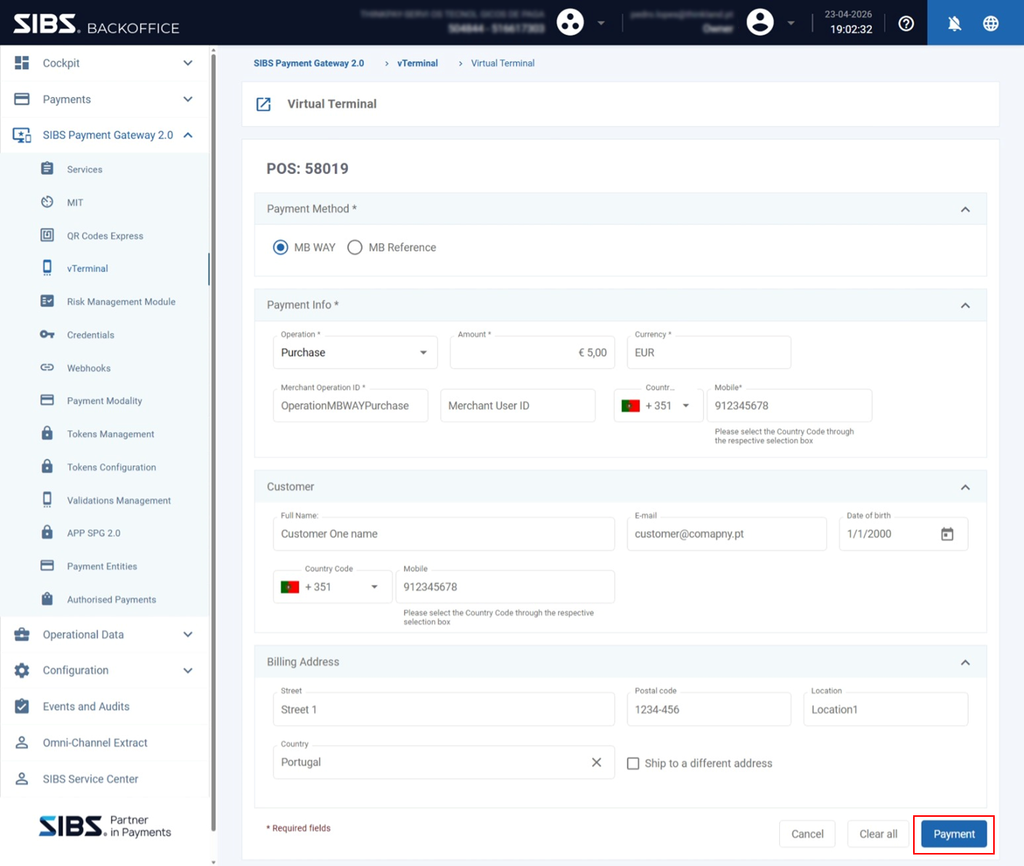
The MB WAY One-Off Payment flow in the Virtual Terminal allows an operator to initiate a real-time payment request to a customer’s mobile device.
This flow is:
- Immediately initiated by the operator through the vTerminal
- Asynchronously completed following customer approval in the MB WAY application
The payment is only completed after the customer approves the request in the MB WAY application.
This chapter describes the end-to-end operational flow, including:
- Form completion
- Payment initiation
- Customer interaction
- Final status validation
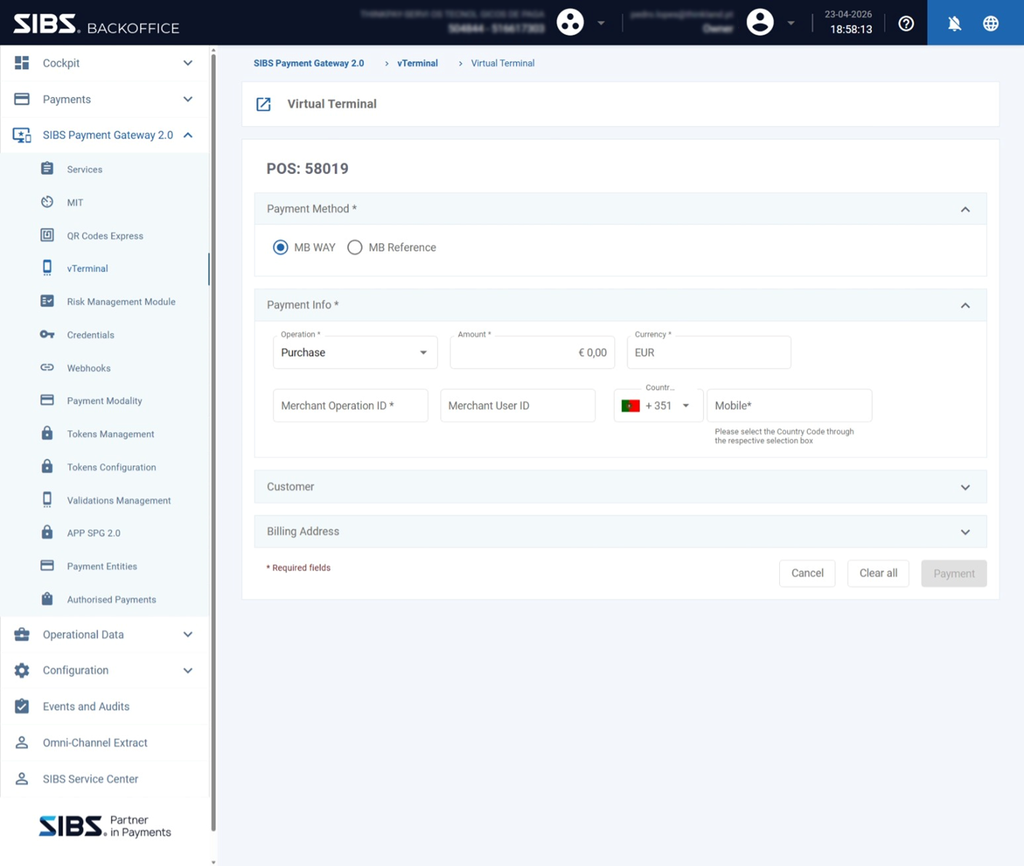
Step 1 – Access Virtual Terminal
Navigate to:
SIBS Payment Gateway 2.0 → vTerminal → Virtual Terminal
At this stage, the operator is presented with the payment form.
Step 2 – Select Payment Method
In the Payment Method block:
- Select MB WAY
This selection dynamically configures the form for MB WAY operations.
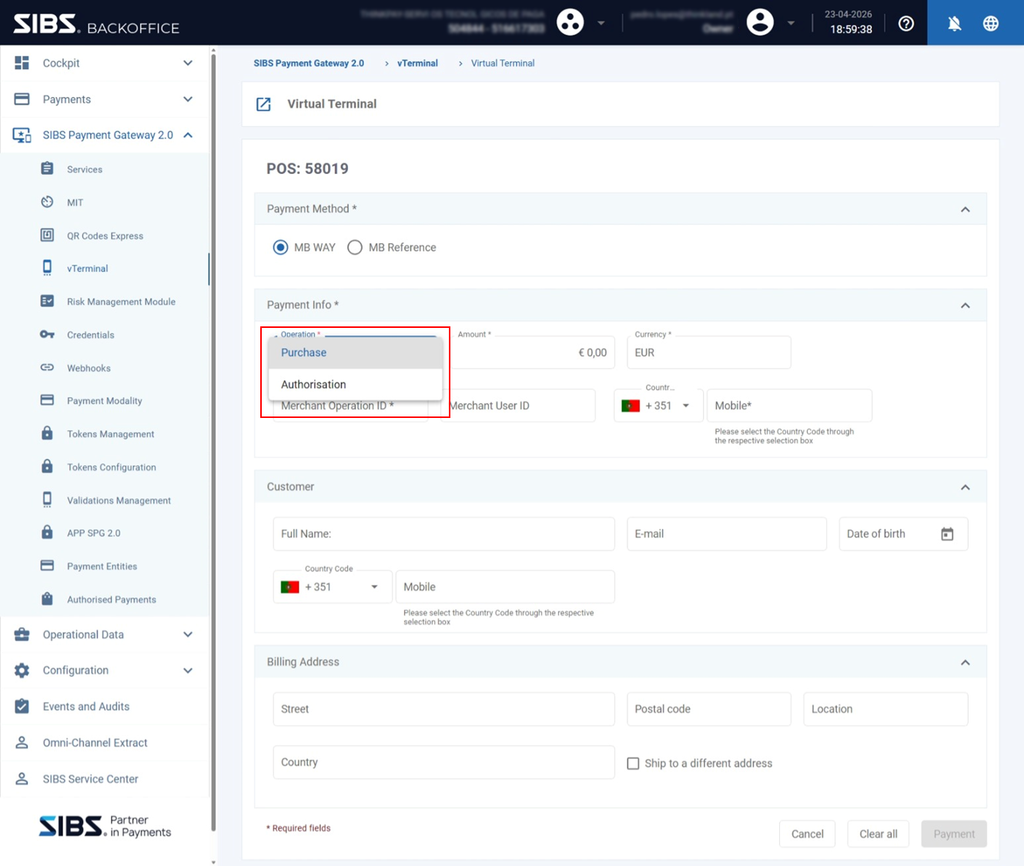
Step 3 – Define Operation Type
In the Payment Information block:
- Set Operation = Purchase
This defines a one-off payment request.
Step 4 – Fill Payment Information
Provide the required payment details:
- Amount – Transaction value
- Currency – Transaction currency (e.g., EUR)
- Merchant Operation ID – Unique identifier for traceability (must be unique per operation)
- Country Code – Mobile prefix (e.g., +351)
- Mobile – Customer’s MB WAY mobile number
Optional:
- Merchant User ID – Internal customer reference
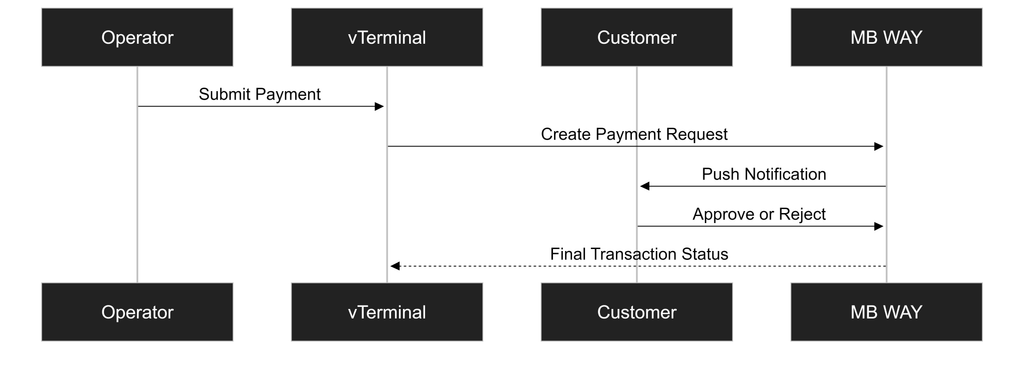
Step 5 – (Optional) Fill Customer and Billing Data
Expand and fill, if required:
Customer Block
- Full Name
- Date of Birth
- Mobile (contextual enrichment)
Billing Address Block
- Street
- Postal Code
- Location
- Country
These fields:
- Do not impact payment processing
- May support internal reconciliation and reporting
Step 6 – Submit Payment
Click the “Payment” button.
This action:
- Submits the payment request
- Triggers a real-time MB WAY push notification to the customer
Video Tutorial – MB WAY One-Off Payment
The following video provides a practical walkthrough of how to initiate an MB WAY One-Off Payment through the vTerminal.
Video – MB WAY One-Off Payment
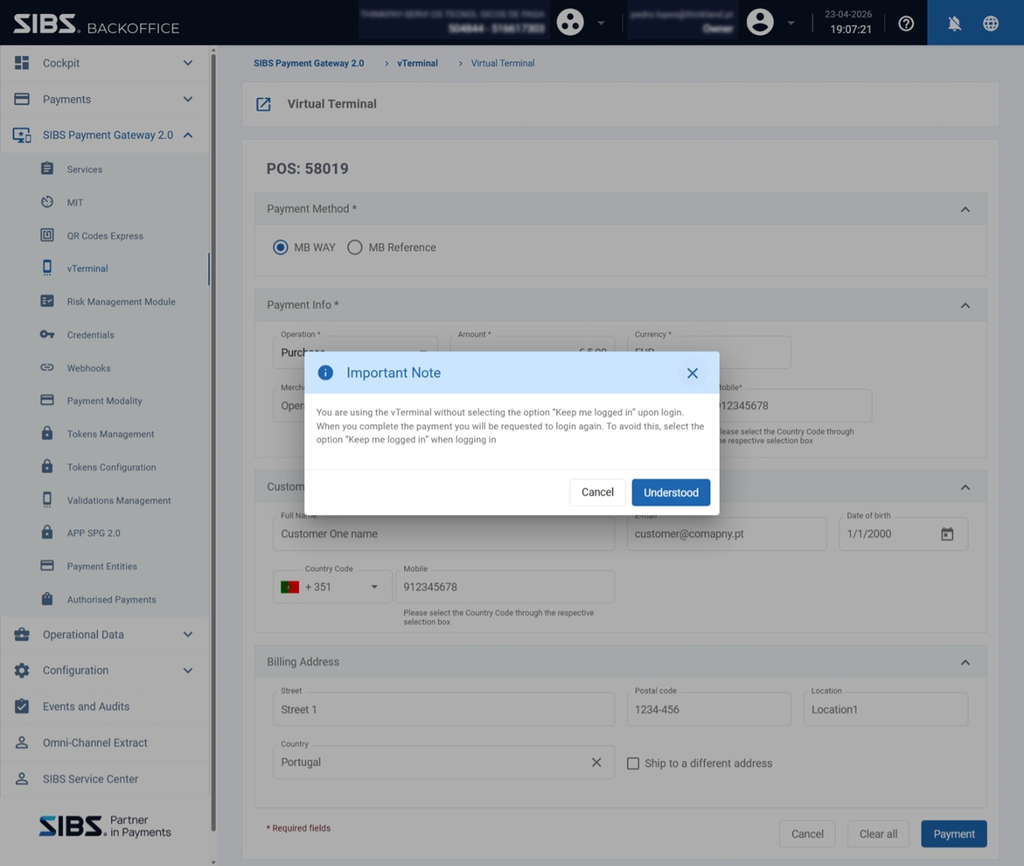
Step 7 – Session Handling (Conditional)
If the session is not persistent, the system may display an informational message indicating that re-authentication will be required after the payment is submitted
- The operator may be required to re-authenticate in a subsequent step.
This does not affect the payment request.
Step 8 – Customer Authorization
On the customer side:
- A payment request is sent to the customer’s MB WAY mobile application.
- The customer must:
- Open the app
- Review the payment
- Approve or reject the payment request
Key characteristics
- The request is time-bound (~4 minutes)
- No approval → the payment request expires and the transaction does not reach a successful completion state
- Rejection → payment fails
This interaction occurs entirely on the customer’s mobile device and is not visible in the Backoffice interface.
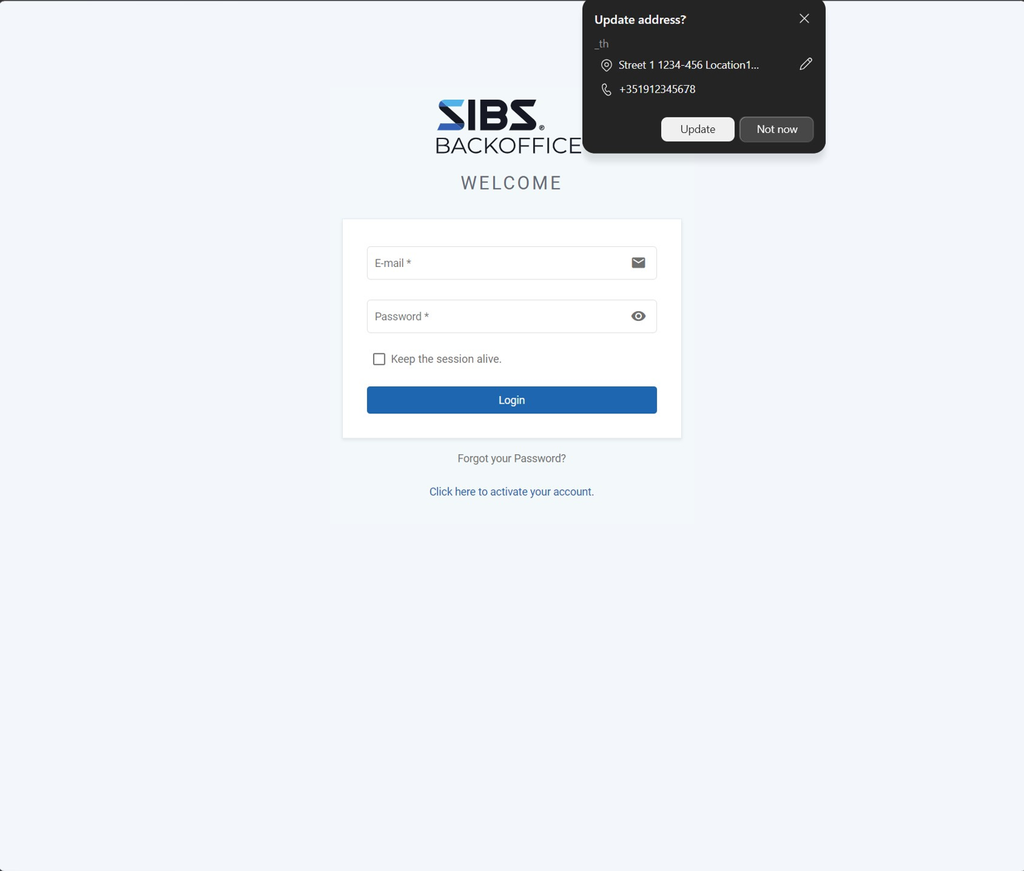
Step 9 – Re-Authentication (Conditional)
If the session is not persistent, the operator is redirected to the Backoffice login page.
The operator must:
- Re-authenticate using their credentials
- Access the Backoffice interface again

Step 10 – Check Transaction Status
After re-authentication, the operator accesses the transaction status view, typically via:
SIBS Payment Gateway 2.0 → vTerminal → Check Status
At this stage, the transaction is available in the status view, allowing the operator to consult its current state, processing status, and transaction details.
The operational status information presented in the Backoffice follows the same transaction lifecycle principles used across other SPG transaction channels.
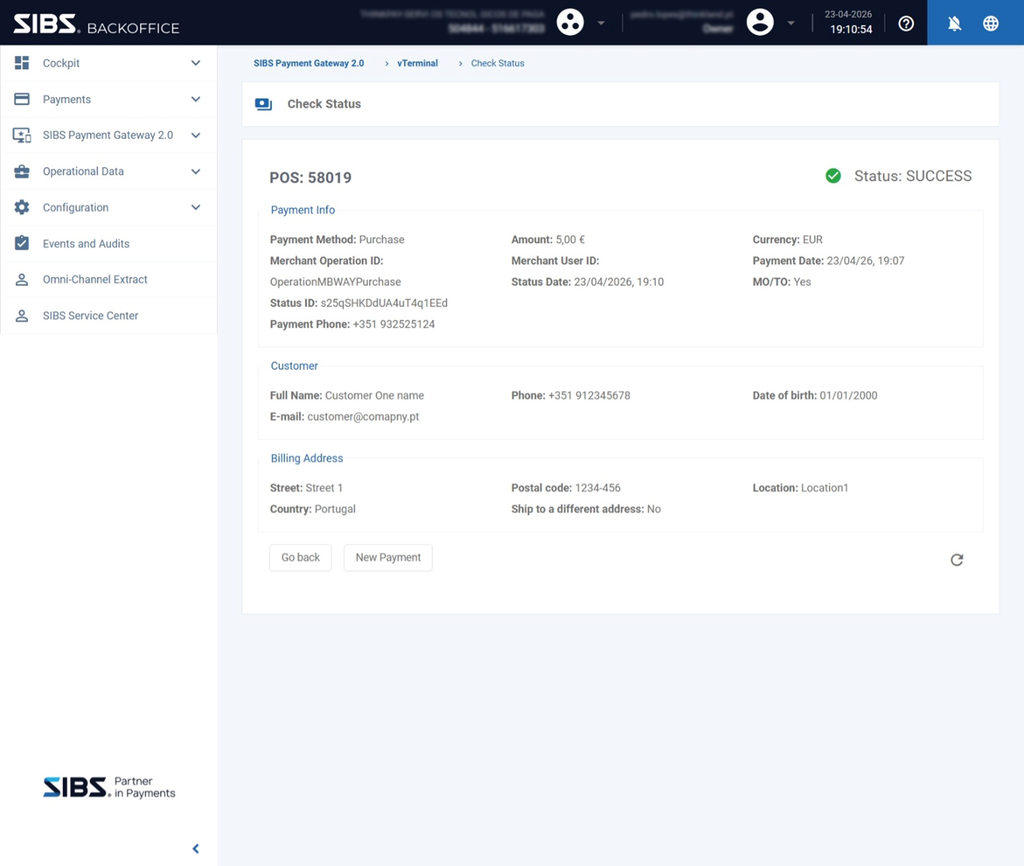
The operator may refresh the page or return to the status view until a final status is reached (Success or Declined).
For additional information regarding transaction states, status interpretation, and asynchronous transaction processing, refer to the SPG transaction status and notification chapters of this documentation.
Step 11 – Result Visualization
The status page displays:
- Payment Method
- Amount and Currency
- Merchant Operation ID
- Transaction identifiers
- Customer information (if provided)
- Billing details (if provided)
Possible Outcomes
The following section describes the possible transaction outcomes and their meaning.
The transaction may result in one of the following states:
Success
- Payment approved by the customer
- The payment is completed successfully
Declined
- Customer rejected the request
- Or the operation failed validation during processing
Pending
- Customer has not yet acted
- Operator may refresh the status view or return to it later
Behavioral Notes
Asynchronous Completion
Although the request is initiated immediately:
- The final status depends on customer action
- The operator must rely on:
- Refreshing the status page
- Or consulting the transaction status later through the Backoffice
Time Constraints
- MB WAY requests expire if not approved within the allowed timeframe
- Expired requests result in transactions that do not reach a successful completion state
Idempotency and Traceability
- Merchant Operation ID should be unique per operation
- Enables:
- Tracking
- Reconciliation
- Support analysis
No Immediate Guarantee of Success
Submitting the form:
- Does not guarantee payment completion
- Only confirms that the MB WAY payment request was successfully initiated for customer authorization
Summary
The MB WAY One-Off Payment flow in the Virtual Terminal:
- Initiates a real-time payment request to a mobile device
- Requires explicit customer approval
- Provides clear operational feedback via the status page and final transaction details.
Correct execution requires:
- Accurate mobile number input
- Proper tracking via Merchant Operation ID
- Awareness of asynchronous behavior and timing constraints