

Overview
The Credentials area allows merchants to manage the application credentials used by the SIBS Payment Gateway.
Application credentials provide the identity used by applications and server-to-server integrations when authenticating with the SIBS Payment Gateway APIs. During the authentication process, these credentials are used to obtain a Bearer Token, which is subsequently included in API requests as described in A.3 – API Requests and the integration chapters of D. Payment Methods.
Each credential is associated with a specific merchant profile and terminal, ensuring that applications can authenticate only for the services and resources enabled for the corresponding merchant account.
From the Credentials area, authorized users can:
- View existing credentials.
- Create new application credentials.
- Review credential information.
- View credential details.
- Remove credentials that are no longer required.
Credential management is performed exclusively through the SIBS Backoffice and is available only to users with the appropriate permissions.
Relationship with API Authentication
Credential management is an operational function of the SIBS Backoffice that complements the API authentication model described throughout this documentation.
When implementing a server-to-server integration, an application uses the credentials created in this area to authenticate with the SIBS Payment Gateway and obtain a Bearer Token. That Bearer Token is then included in subsequent API requests to authorize access to the SIBS Payment Gateway services.
This chapter focuses exclusively on the operational management of credentials within the Backoffice.
For a complete description of the authentication flow, including Bearer Token generation and API authentication, refer to the authentication and integration chapters referenced in Related Topics.
Accessing Credentials
The Credentials area is available from the SIBS Payment Gateway section of the SIBS Backoffice navigation menu.
Selecting Credentials displays the list of credentials associated with the currently selected merchant.
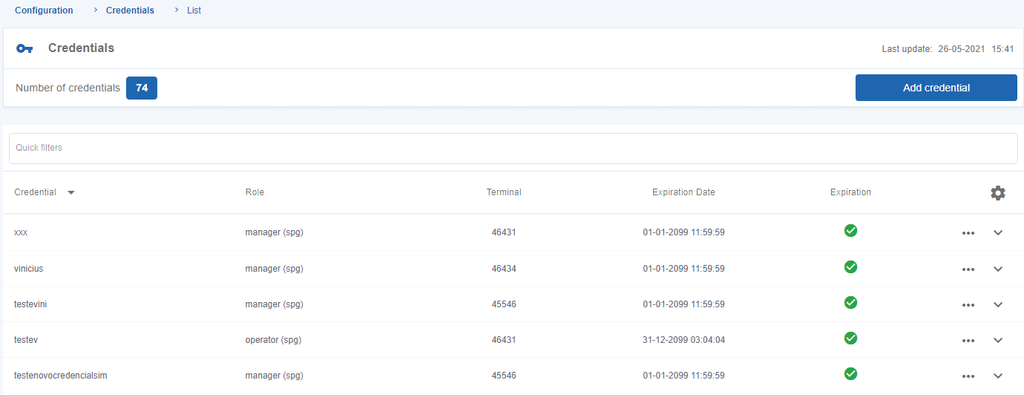
Figure 1 – Credentials List
Viewing Credentials
The Credentials page provides a consolidated view of all credentials associated with the selected merchant.
Each credential represents the identity of an application that authenticates with the SIBS Payment Gateway APIs.
The list provides summary information that allows authorized users to identify the credential, verify its operational status, and confirm the associated merchant profile and terminal.
Credential List Fields
The following table describes the information displayed for each credential.
| Field | Description |
|---|---|
| Credential | Logical name assigned to the credential for identification purposes. |
| Profile | Merchant profile associated with the credential. |
| Terminal | Terminal associated with the credential. |
| Expiration Date | Date on which the credential expires. |
| Status | Indicates the operational status of the credential. Active credentials are displayed with a green status indicator, while inactive credentials are displayed with a red status indicator. |
Creating a Credential
New credentials can be created directly from the Credentials area.
Credentials are typically created whenever a new application, service, or server-to-server integration requires independent authentication with the SIBS Payment Gateway.
To create a new credential:
Step 1. Open the Credentials menu.
Step 2. Select Add Credential.
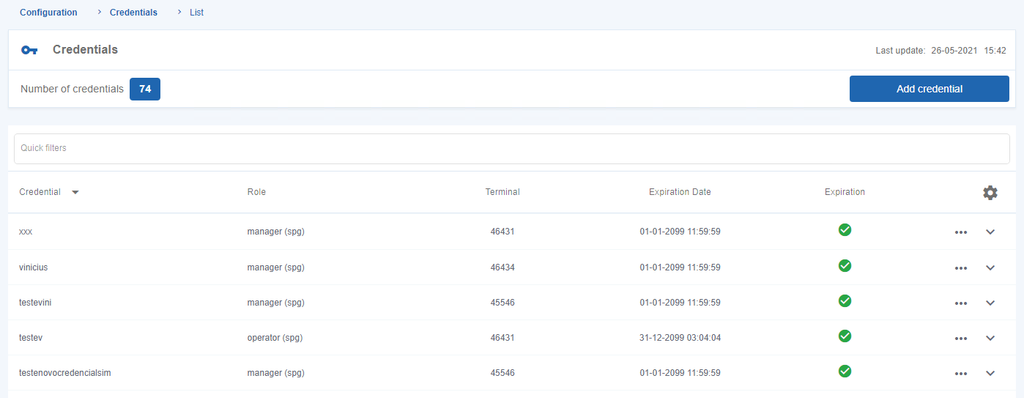
Figure 2 – “Add Credential”
The Backoffice displays the credential creation form.
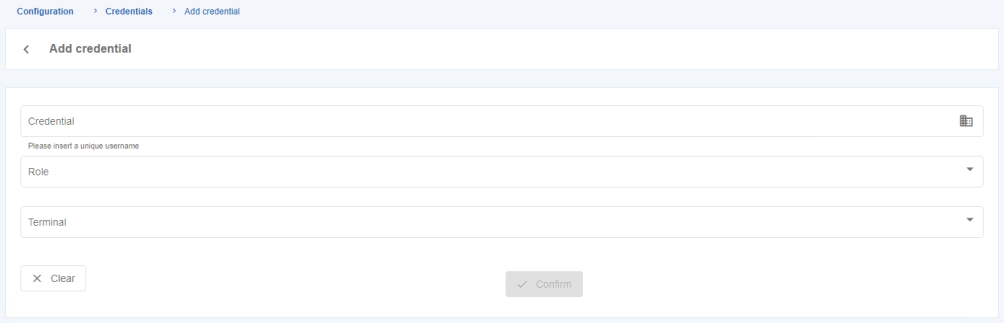
Figure 3 – Form to Add a Credential
All fields in the form are mandatory.
Credential Creation Fields
The following table describes the information required to create a new credential.
| Field | Description |
|---|---|
| Credential | Logical name assigned to the credential for identification purposes. |
| Profile | Merchant profile associated with the credential. |
| Terminal | Terminal associated with the credential. |
To complete the operation:
Step 3. Enter the required information.
Step 4. Select Confirm.
Alternatively, select Clear to remove all information entered in the form.
The Backoffice displays a confirmation screen before creating the credential.
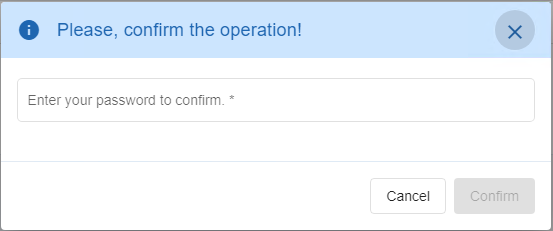
Figure 4 – Confirmation of Created Credential
Step 5. Confirm the operation.
After the operation is completed successfully, the Backoffice displays a confirmation message containing the newly generated credential together with its corresponding expiration date.
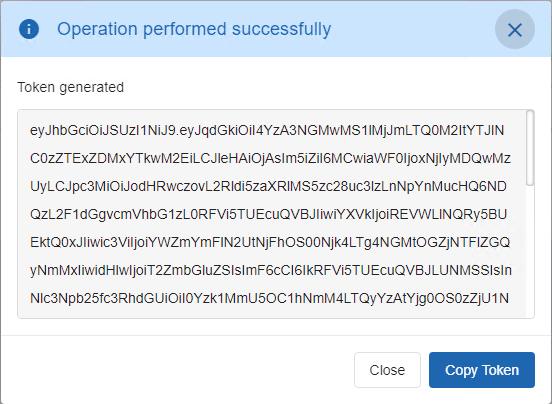
Figure 5 – Generated Credential
The newly created credential becomes immediately available in the Credentials list.
Video Tutorial – Configuring Credentials
The following video demonstrates how to create and configure a credential in the SIBS Backoffice, including selecting the merchant profile and terminal and completing the credential creation process.
Video – Configuring Credentials
Viewing Credential Information Summary
The Backoffice allows users to display a summary of the information associated with an existing credential.
To display the summary:
Step 1. Locate the required credential.
Step 2. Select the Expand button displayed at the end of the corresponding row.
The Backoffice expands the selected credential and displays its summary information.

Figure 6 – Credential Information Summary
The summary provides a quick operational view of the credential without requiring access to its detailed information.
Viewing Credential Details
Detailed information about a credential can be accessed directly from the Credentials list.
This functionality allows authorized users to inspect the complete information associated with a credential and verify the generated credential.
To view the credential details:
Step 1. Locate the required credential.
Step 2. Open the Options menu (three vertical dots).
Step 3. Select Details.
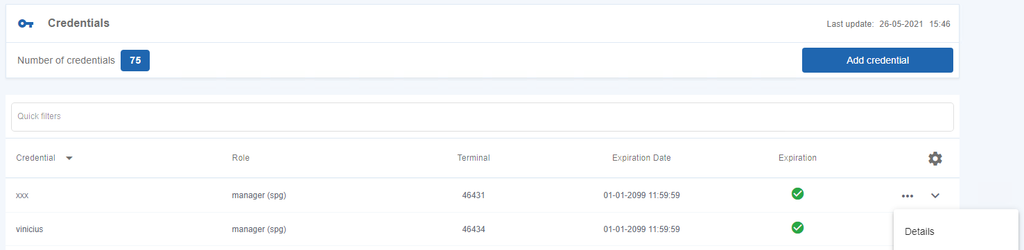
Figure 7 – View Credential Details
For security reasons, the Backoffice requests the authenticated user’s password before displaying the credential information.
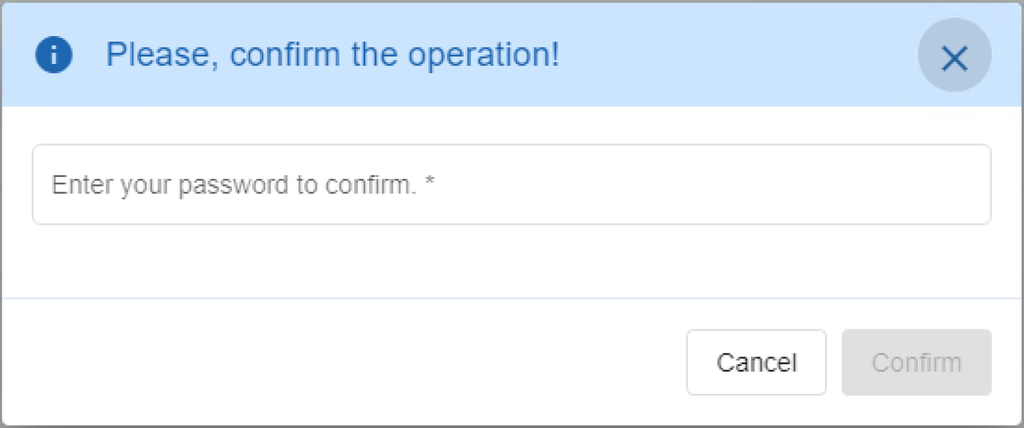
Figure 8 – Entering the Password to View the Credential Details
Step 4. Enter the account password.
Step 5. Select Confirm.
The Backoffice displays the complete credential details together with the generated credential.
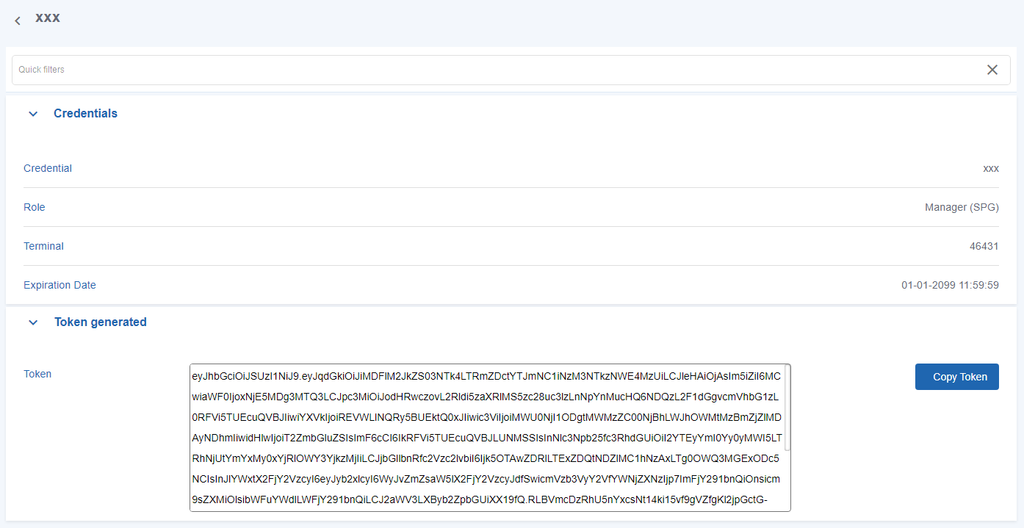
Figure 9 – View Generated Credential
The information displayed in this screen allows authorized users to verify the credential associated with a particular application or integration. These credentials are subsequently used during the authentication process to obtain the Bearer Tokens required for authenticated requests to the SIBS Payment Gateway APIs.
Removing a Credential
Credentials that are no longer required can be removed from the Backoffice.
Removing unused credentials is recommended to help maintain proper control over the credentials associated with applications and integrations.
To remove a credential:
Step 1. Locate the required credential.
Step 2. Open the Options menu (three vertical dots).
Step 3. Select Remove Credential.
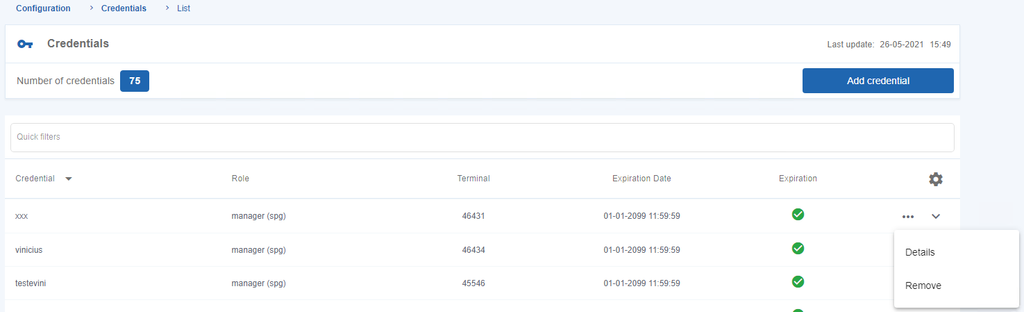
Figure 10 – Remove Credential
For security reasons, the Backoffice requests the authenticated user’s password before completing the operation.
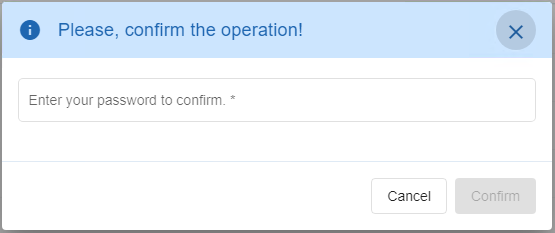
Figure 11 – Enter the Password to Confirm the Credential Removal
Step 4. Enter the account password.
Step 5. Confirm the operation.
After confirmation, the selected credential is permanently removed from the merchant’s credential list.
Important
Credential management in the SIBS Backoffice complements the API authentication model described throughout this documentation.
This chapter explains how credentials are created, inspected, and managed from an operational perspective. The complete authentication process – including the generation of Bearer Tokens and their use in authenticated API requests – is described in A.3 – API Requests. For implementation examples showing authenticated SPG API calls, refer to the relevant payment method integration chapters in D. Payment Methods or to F.1 – End-to-End Integration Examples.
Permissions
Access to the Credentials area is controlled through the SIBS Backoffice permission model.
The credential management operations available to each user depend on:
- The authenticated user’s profile.
- The permissions assigned to that profile.
- The currently selected merchant.
- The Credentials service being enabled for the merchant account.
As a result, different users may have access to different credential management operations while using the same Backoffice environment.