

Overview
The Terminal Configuration section provides access to the management of the merchant’s payment terminals and their associated operational configuration.
Depending on the authenticated user’s permissions, this area allows users to consult terminal information, request new terminals, configure the operations available on a terminal, edit terminal information, and consult payment entities associated with the merchant account and submit requests for new payment entities.
The availability of individual features depends on the permissions assigned to the authenticated user and the services enabled for the merchant.
Accessing Merchant Configuration
Merchant Configuration is available from the Configuration section of the SIBS Backoffice navigation menu.
Selecting Terminals displays the list of terminals associated with the currently selected merchant.
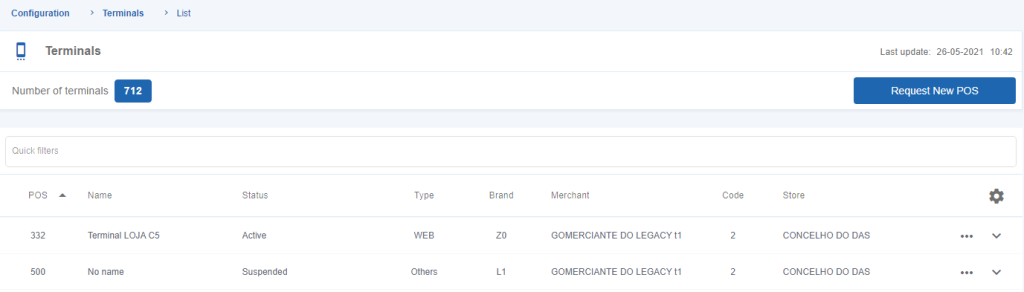
Figure 1 – Terminal data
Viewing Terminals
The Terminals page displays all payment terminals associated with the selected merchant.
The information presented for each terminal allows users to identify the available payment infrastructure and serves as the starting point for terminal management operations.
Depending on the authenticated user’s permissions, only the terminals available for the selected merchant are displayed.
Searching for Terminals
The Terminals page provides quick filters that allow users to locate specific terminals.
The available filters can be used to narrow the displayed list and simplify the identification of individual terminals.
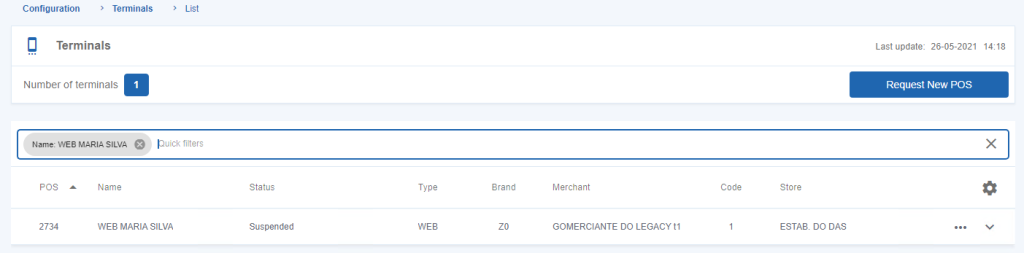
Figure 2 – Terminal quick filters
Requesting a New Terminal
The Backoffice allows authorized users to request the creation of a new payment terminal.
To request a new terminal:
Step 1. Open the Options menu.
Step 2. Select Request New Terminal.
The request form is displayed.
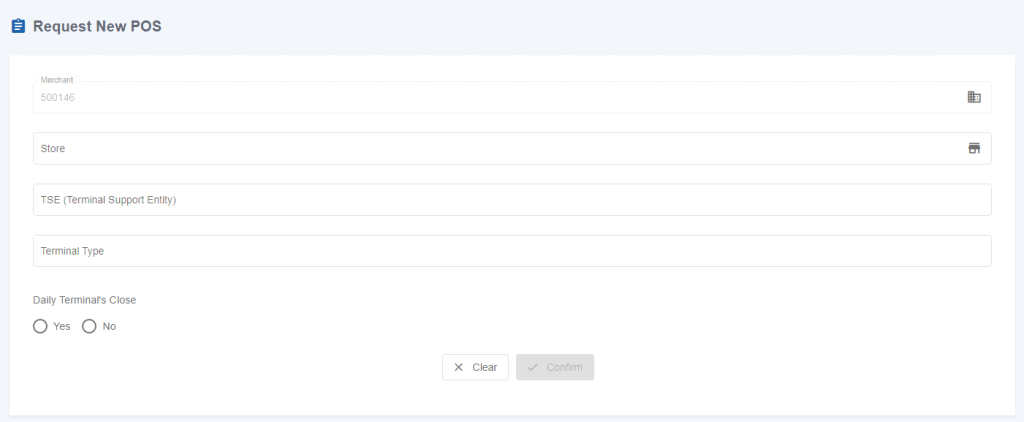
Figure 3 – Form to request a new terminal
Complete the required information for the new terminal.
During the request process, users can specify the operations that will be available for the terminal.
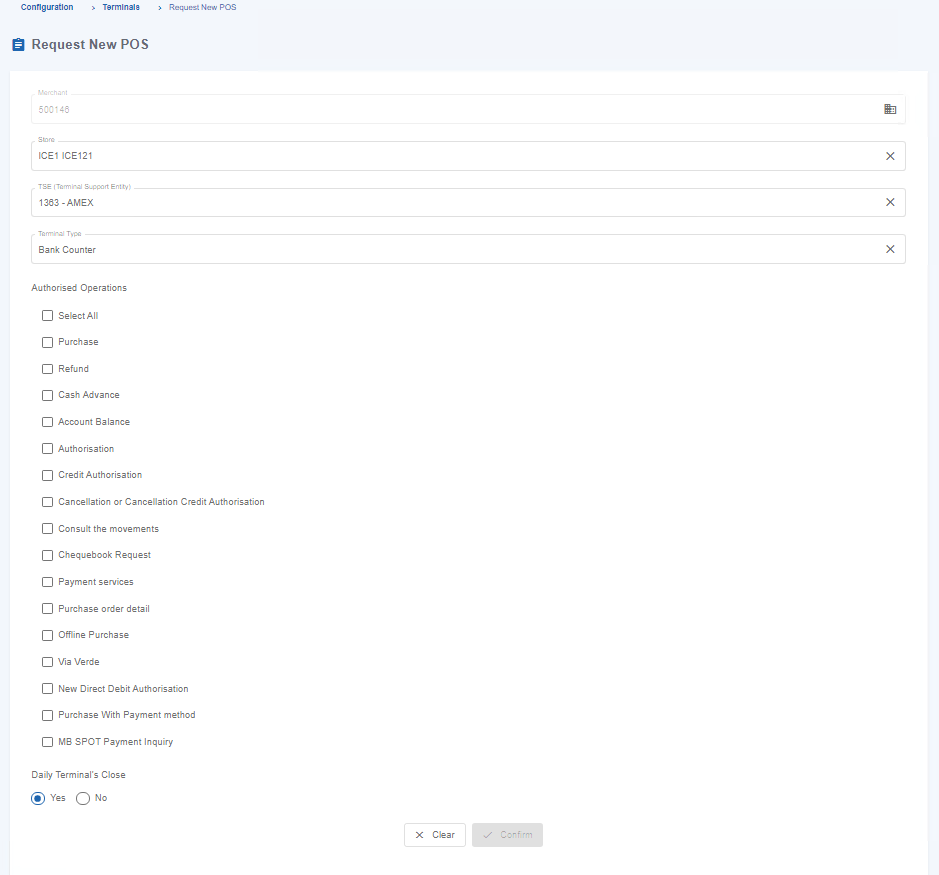
Figure 4 – Choose Operations to be allowed in the new terminal
Step 3. Review the terminal configuration.
Step 4. Submit the request.
Viewing Terminal Details
After submitting the terminal request, the Backoffice displays the terminal details page, where users can review the configuration and consult the operational information associated with the newly created terminal.
The terminal details page displays the configuration and operational information associated with the selected terminal.
When required, users can use the available quick filters to locate specific information within the terminal details.
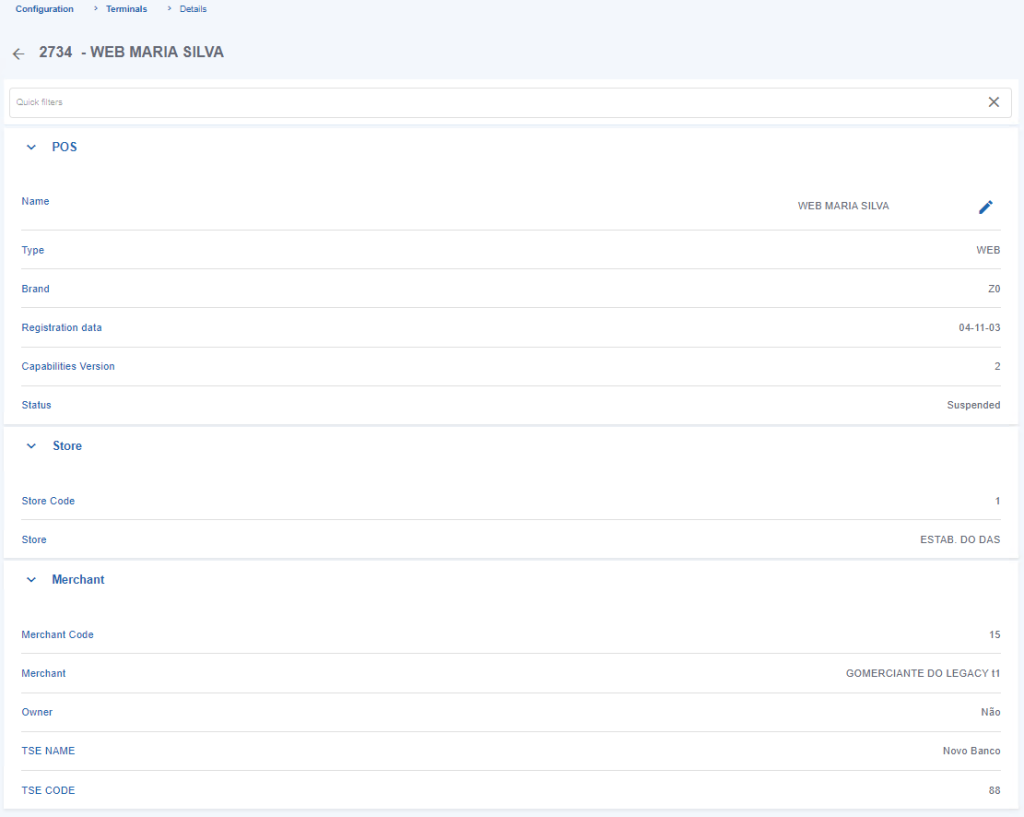
Figure 5 – Quick filters in the new terminal’s detail
Editing the Terminal Name
Authorized users can update the descriptive name of an existing terminal.
To edit the terminal name:
Step 1. Open the required terminal.
Step 2. Select the option to edit the terminal name.
Step 3. Enter the new terminal name.
Step 4. Save the changes.
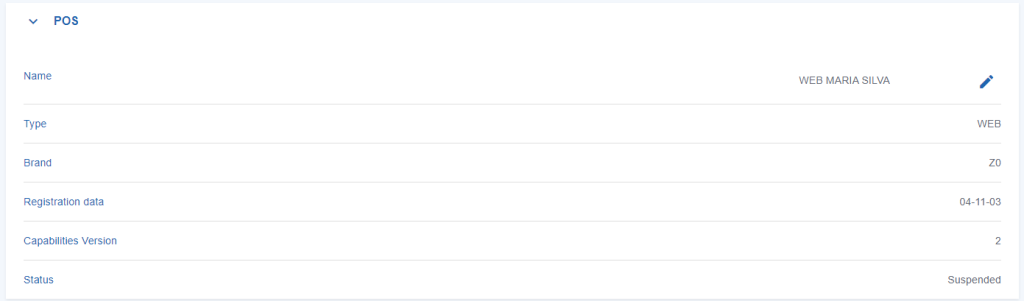
Figure 6 – Edit the terminal name
Requesting a New Payment Entity
The Payment Entities option allows authorized users to consult the payment entities associated with the merchant account and submit requests for new payment entities.
Depending on the merchant configuration and enabled services, users can access the Payment Entity area to consult the available payment entities and submit requests for new payment entities.
To request a new Payment Entity:
Step 1. Open the Payment Entities menu.
Step 2. Select Request New Payment Entity.
Step 3. Complete the required information.
Step 4. Submit the request.
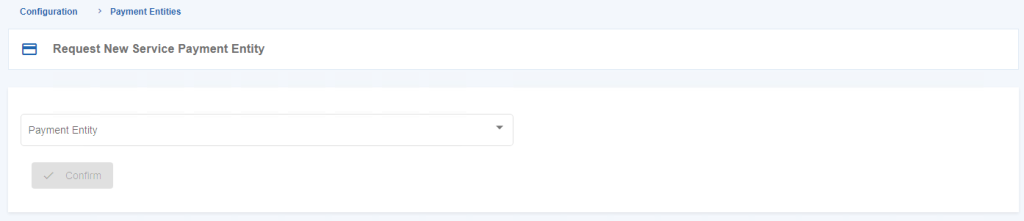
Figure 7 – Request a new Payment entity
Permissions
Access to terminal management and payment entity configuration is controlled through the SIBS Backoffice permission model.
The operations available to each user depend on:
- The authenticated user’s profile.
- The permissions assigned to that profile.
- The currently selected merchant.
- The services enabled for the merchant account.
As a result, different users may have access to different terminal management and payment entity configuration features while using the same Backoffice environment.