

Overview
The User Assistance features provide quick access to resources that help users operate the SIBS Backoffice platform, obtain support, stay informed about important events, and personalize the user interface.
Accessible from the dashboard header, these features include:
- Support resources and documentation.
- Frequently Asked Questions (FAQs).
- Support request submission.
- System notifications.
- Language selection.
These features are available throughout the authenticated Backoffice session, regardless of the operational area currently being used.
Support
The Support menu provides access to documentation and assistance resources available to Backoffice users.
These resources allow users to obtain additional information about the platform, consult frequently asked questions, access the online documentation, and submit support requests when assistance is required.
Accessing the Support Menu
To access the Support menu:
Step 1. Sign in to SIBS Backoffice.
Step 2. From the User Dashboard, select the Support icon located in the dashboard header.
Step 3. Review the available support resources.
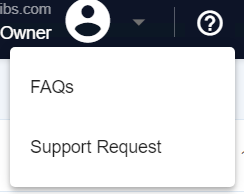
Figure 1 – Support menu
Available Support Resources
Depending on the services available within the Backoffice platform, the Support menu may provide access to:
- Frequently Asked Questions (FAQs)
- User Guide
- Support Requests
Frequently Asked Questions (FAQs)
The Frequently Asked Questions (FAQs) section provides answers to common questions regarding the use of the SIBS Backoffice platform.
Users should consult the FAQs before submitting a support request, as many operational questions and common scenarios are already documented.
To access the FAQs:
Step 1. Open the Support menu.
Step 2. Select FAQs.
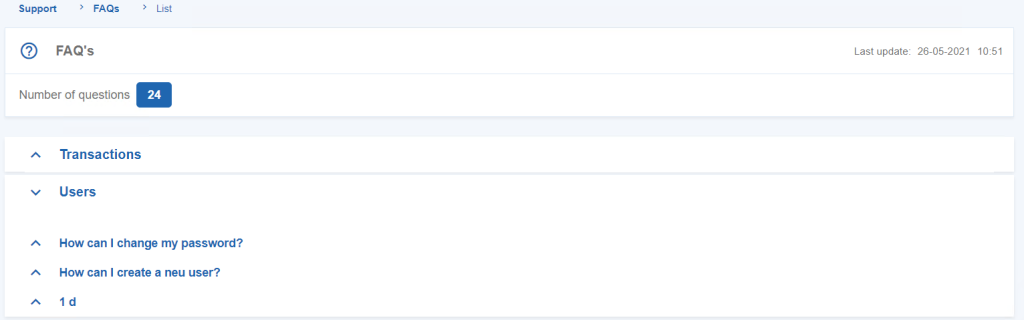
Figure 2 – Frequently Asked Questions
User Guide
The User Guide provides direct access to the online SIBS Payment Gateway documentation.
The online documentation contains comprehensive guidance covering Backoffice operations, payment methods, transaction management, merchant configuration, integration models, notifications, technical examples, and other platform capabilities.
To access the User Guide:
Step 1. Open the Support menu.
Step 2. Select User Guide.
The online documentation opens in a new browser tab, allowing users to navigate directly to the relevant documentation topics.
Support Requests
Support Requests allow users to submit questions or report issues directly from the Backoffice platform.
When creating a support request, users should provide sufficient information to allow the reported issue to be investigated efficiently.
To submit a Support Request:
Step 1. Open the Support menu.
Step 2. Select Support Request.
Step 3. Complete the required information describing the question or issue.
Step 4. Submit the request.
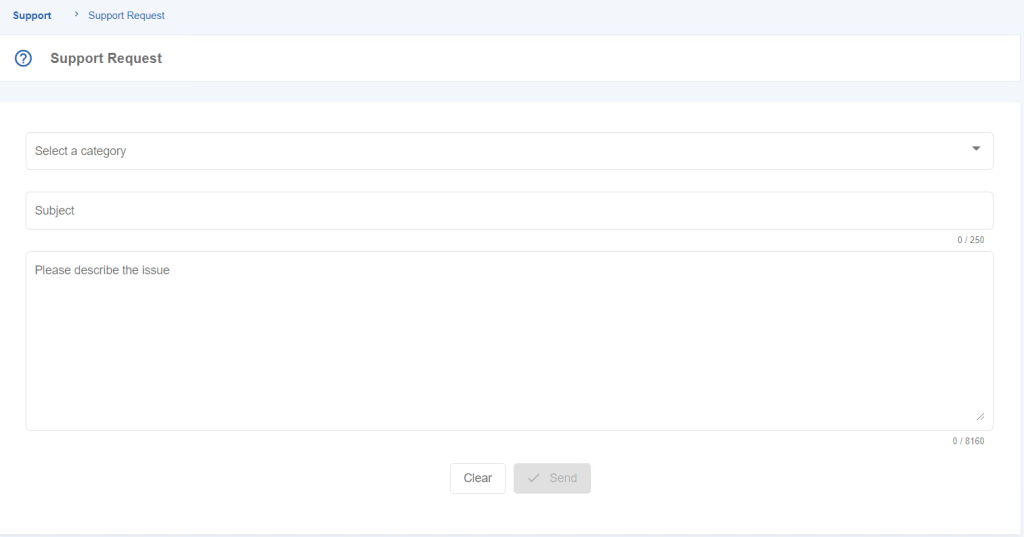
Figure 3 – Support Request
Notifications
The Notifications feature provides visibility into important platform messages and operational events.
Notifications help users stay informed about information requiring attention while using the Backoffice platform.
Viewing Notifications
To view notifications:
Step 1. From the User Dashboard, select the Notifications icon located in the dashboard header.
Step 2. Review the available notifications.
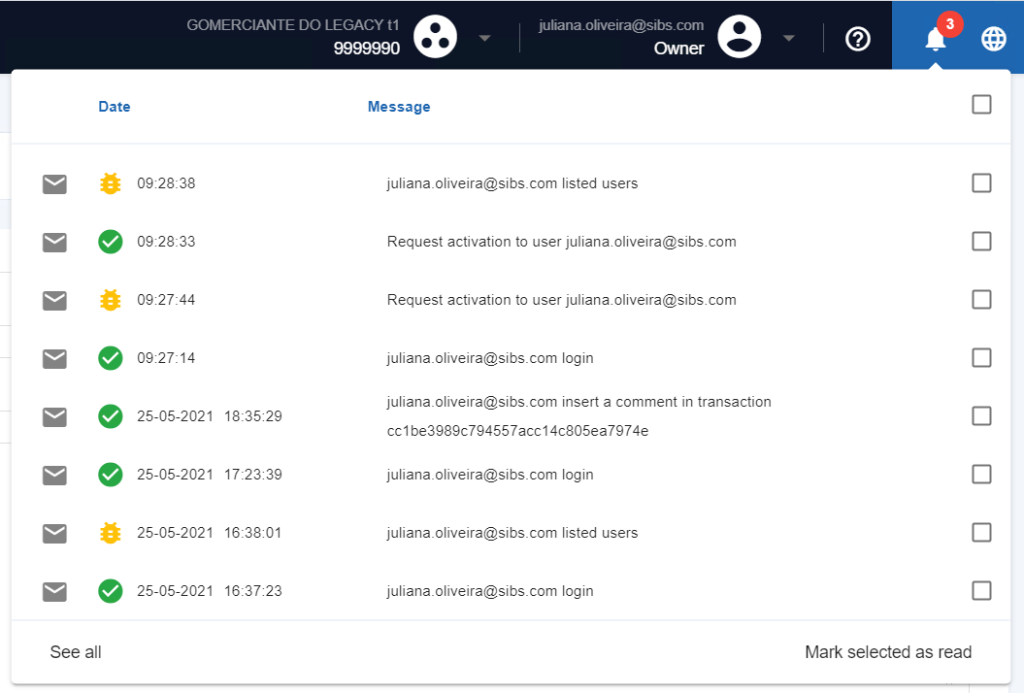
Figure 4 – Notifications panel
Notifications are displayed directly within the notification panel and may include operational or informational messages generated by the platform.
Language Selection
The Language Selection feature allows users to change the language used by the Backoffice user interface.
Changing the language affects the display language of menus, labels, and other interface elements.
Changing the Interface Language
To change the Backoffice language:
Step 1. From the User Dashboard, select the Language selector located in the dashboard header.
Step 2. Select the preferred language.
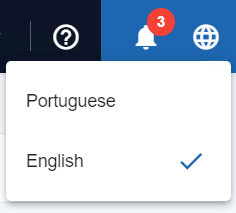
Figure 5 – Language selection
The Backoffice user interface is updated to display the selected language.