

Overview
The Transaction Search feature allows users to locate payment transactions processed through the SIBS Payment Gateway by applying search criteria and filters.
Users can search transactions using predefined filters, refine the search by adding additional criteria, and save frequently used searches for future use.
Search results are displayed as a transaction list matching the selected search criteria.
Search Filters
Transaction Search provides several filtering options that allow users to narrow the displayed transaction list.
The available search filters include:
- Store
- POS (Terminal)
- Date
- Other Filters
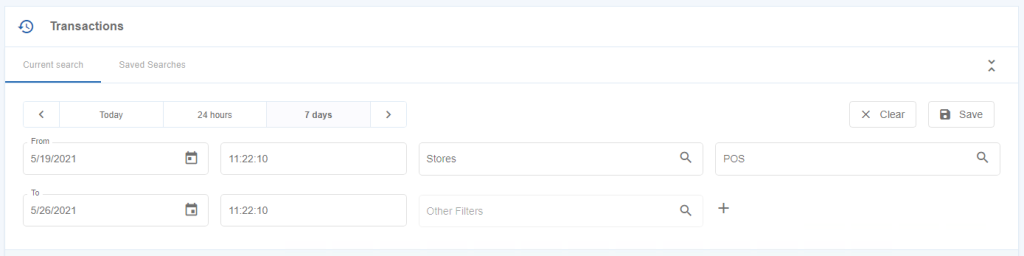
Figure 1 – Transaction filters
Available Search Criteria
The following sections describe the available search filters and their respective configuration options.
Store
The Store filter is the first search criterion that must be selected before additional search filters become available.
To remove a selected Store, select the X displayed next to the Store field.
POS (Terminal)
The POS filter allows users to select up to ten different POS terminals.
To remove a selected POS terminal, select the X displayed next to the corresponding terminal.
Date
The Date filter allows users to search transactions within a selected period.
Users may either:
- Select a custom start date and end date.
- Use one of the predefined periods:
- Today
- Last 24 Hours
- Last 7 Days
For time-based searches, users must also specify the start time and end time before executing the search.
The selectable date range is limited to a maximum period of seven days.

Figure 2 – Filter per time period
Search results are returned according to the selected filters and displayed using pages of up to 100 transactions.
Other Filters
Additional search criteria are available through the Other Filters option.
Depending on the available data, additional filters include:
- Acquirer
- MB WAY Alias (Mobile Phone)
- e-Commerce Authentication
- Channel
- Card
- Client E-mail
- EAT
- Payment Entity
- Split Delivery
- Status
- Merchant Operation ID
- Transaction ID in the Channel
- Authorisation ID / ARN
- Brand
- Authentication Method
- Payment Method
- Data Retrieval Mode
- Maximum Amount
- Minimum Amount
- Operation
- Terminal Period
- Static QR Code
- Recurring
- MB Reference
- System
- Terminal Type
Adding Search Filters
Users may combine multiple search criteria to refine transaction searches.
To add an additional search filter:
Step 1. Select the required Store.
Step 2. Choose the desired filter from the Other Filters list.
Step 3. Select the + button.
The selected filter is added to the active search criteria and becomes available for entering the corresponding value.
Note: A Store must be selected before the Other Filters option can be used.
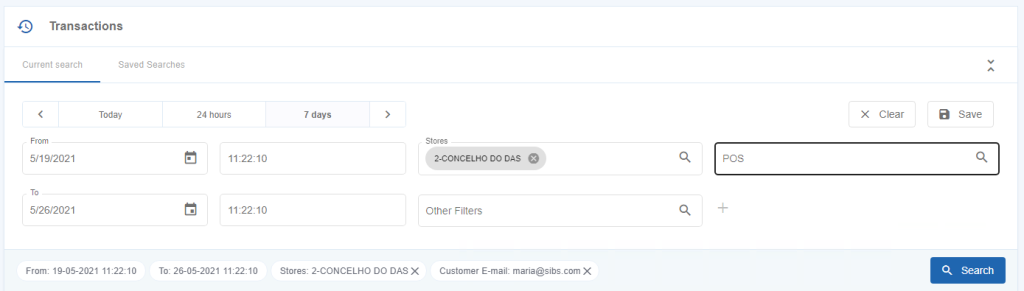
Figure 3 – Filter added to search line
Executing a Search
After configuring the desired search criteria:
Step 1. Select Search.
Step 2. Review the displayed transaction list.
The Transaction Management area displays all transactions matching the selected search criteria.
To remove all active search criteria, select Clear.

Figure 4 – Transaction search result
Saving Searches
Frequently used search criteria can be saved for future use.
To save a search:
Step 1. Configure the desired search criteria.
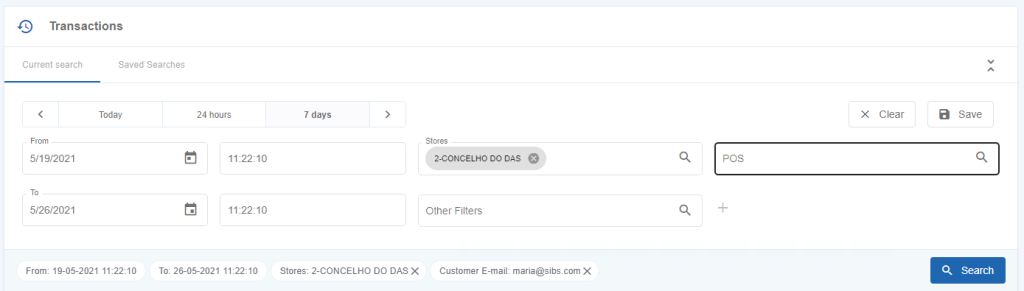
Step 2. Select Save.
Step 3. Enter a name for the saved search.
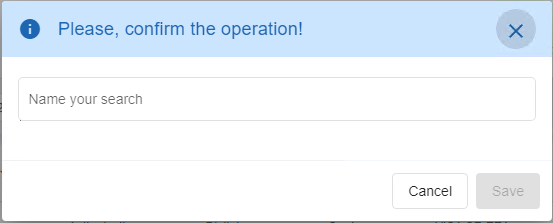
Step 4. Confirm the operation.
The saved search becomes available in the Saved Searches list and can be reused whenever required.
Saved Searches
Previously saved searches are displayed in the Saved Searches tab.
Selecting a saved search applies the stored search criteria.
To remove a saved search, select the Delete (dustbin) icon displayed at the end of the corresponding saved search entry.
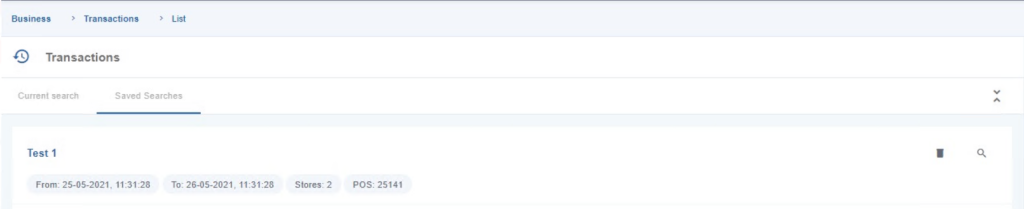
Figure 5 – View saved searches