

Overview
The Merchant Information area provides access to the stores associated with the merchant account and the information related to each configured store.
Depending on the authenticated user’s permissions, users can view the stores assigned to their profile, inspect detailed store information, review associated terminals and agreements, and submit requests for new Supervisor Cards.
Accessing Merchant Information
Merchant Information is available from the Configuration section of the SIBS Backoffice navigation menu.
Selecting Stores displays the list of stores available for the authenticated user.
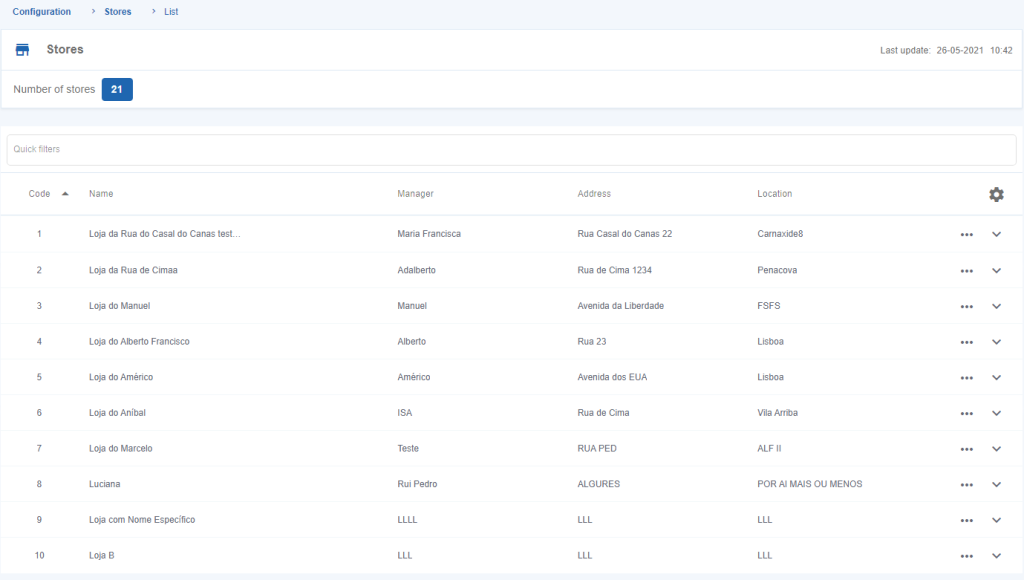
Figure 1 – Store list from the “Configuration” menu
Viewing Stores
The Stores page displays all stores available to the authenticated user.
Each user can view only the stores to which access has been granted.
The list provides a consolidated view of the configured stores and serves as the starting point for all store-related operations.

Searching for Stores
The Stores page provides a quick search feature that allows users to filter the list using the available search criteria.
The available search fields include:
- Code
- Name
- Manager
- Address
- Location
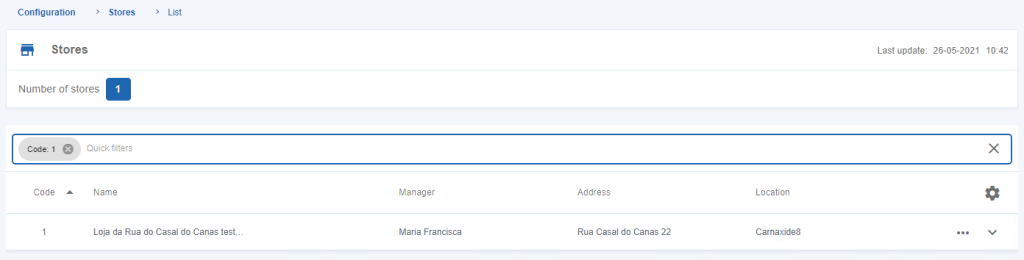
Figure 2 – Stores filter
Viewing Store Terminals
Users can consult the terminals associated with a specific store.
To display the terminals for a store:
Step 1. Locate the required store.
Step 2. Open the Options menu.
Step 3. Select Terminals.
The Backoffice displays only the terminals associated with the selected store.
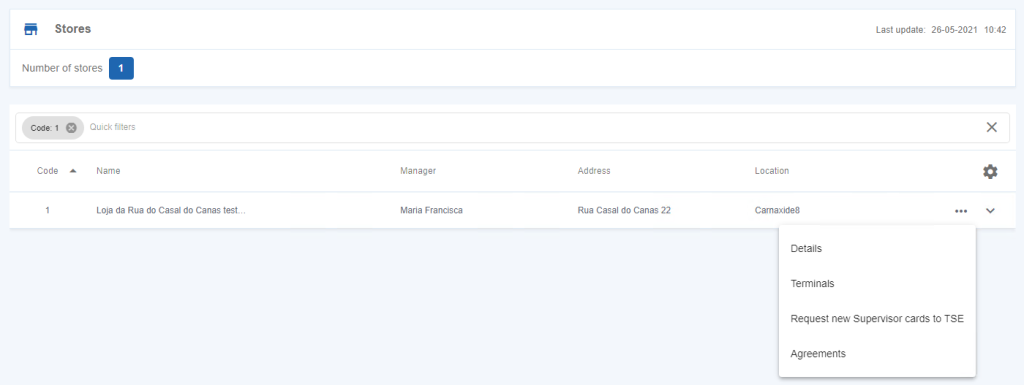
Figure 3 – Inquire Terminals of a Store
Viewing Store Information
Detailed information is available for each configured store.
To view the details of a store:
Step 1. Locate the required store.
Step 2. Open the Options menu.
Step 3. Select Details.
The Store Details page displays the available information organised into logical sections.
When required, users can use the available Quick Search feature to locate specific information within the page.
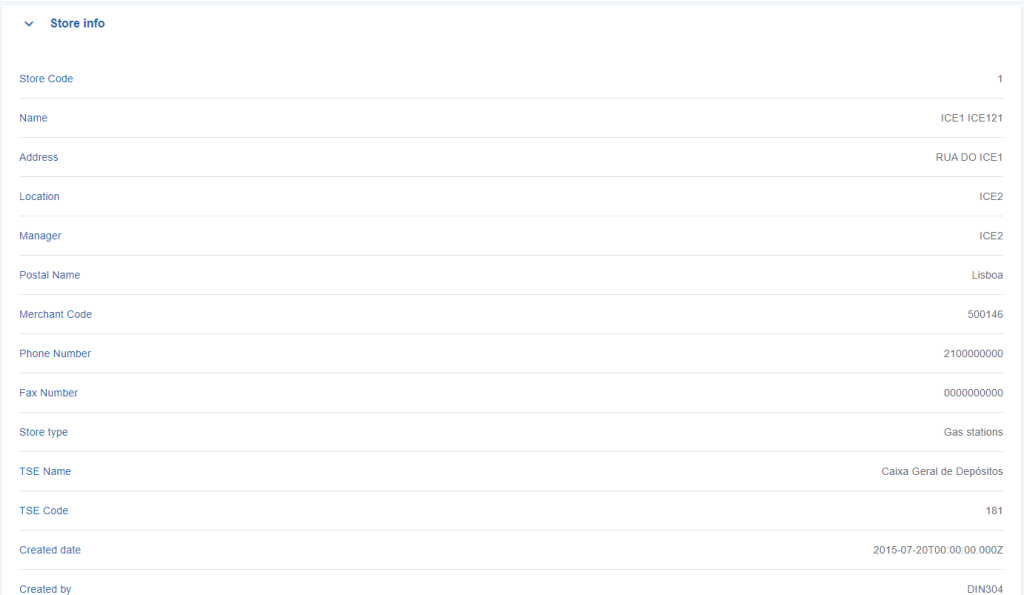
Figure 4 – Store detail (info)
Requesting New Supervisor Cards
The Backoffice allows users to request new Supervisor Cards for the selected store through the Terminal Support Entity (EAT).
To request new Supervisor Cards:
Step 1. Locate the required store.
Step 2. Open the Options menu.
Step 3. Select Request New Supervisor Cards to the EAT.
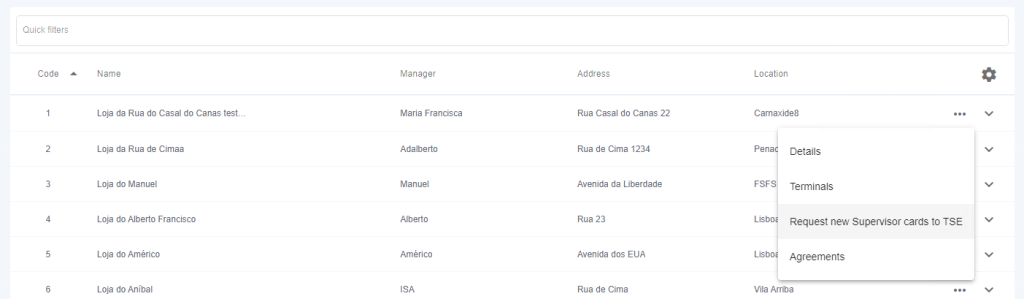
Figure 5 – Request New Supervisor Cards to the EAT
Complete the request form by providing the required information, including:
- Number of Supervisor Cards to be produced.
- Associated account.
- Cash transaction permission.
Step 4. Select Confirm to submit the request.
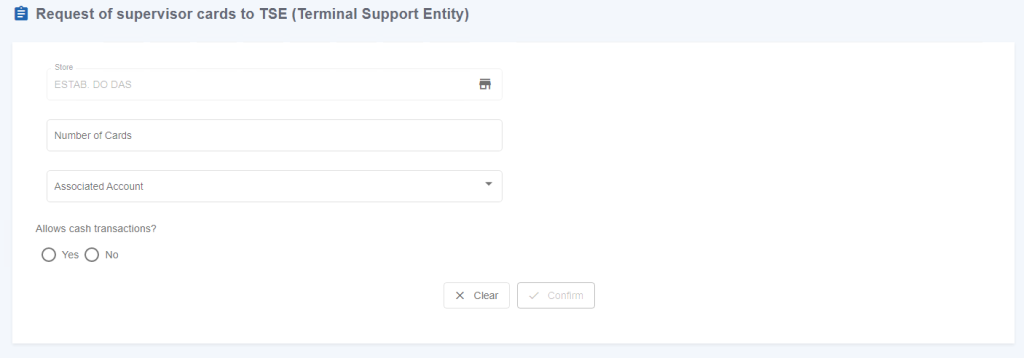
Figure 6 – Form to request new Supervisor Cards to the EAT
Viewing Store Agreements
The Backoffice allows users to consult the agreements associated with a selected store.
Store agreements provide information about the services and operational agreements configured for that store.
To view the agreements:
Step 1. Locate the required store.
Step 2. Open the Options menu.
Step 3. Select Agreements.
The list of agreements associated with the selected store is displayed.
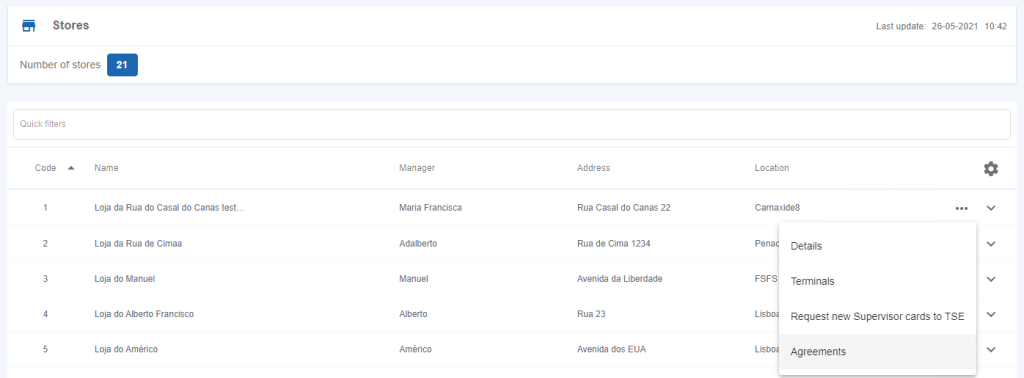
Figure 7 – Inquire Store’s Agreements
To view the details of a specific agreement:
Step 4. Select the required agreement from the list.
The agreement details page displays the information associated with the selected agreement.
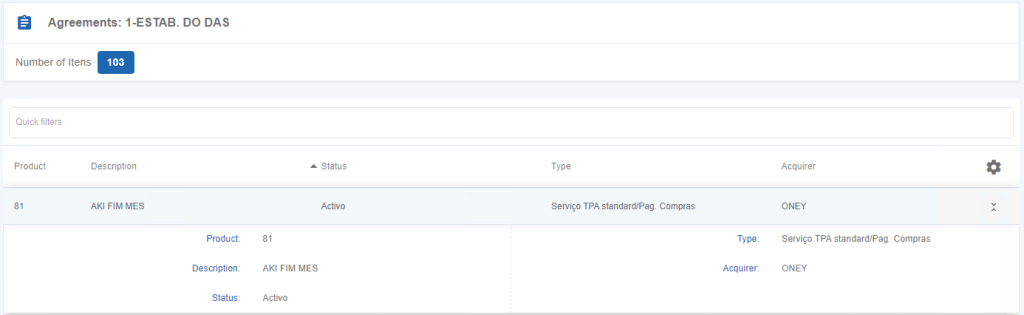
Figure 8 – Store’s Agreements detail